Fixing accessibility issues can be difficult, but it is especially difficult and stressful if you’re fixing them in QA or the final testing phase in a time crunch. Simply put: when you don’t plan for accessibility early in the UX phase, you’re planning to fail at accessibility.

When you explicitly fail to plan, you implicitly plan to fail.” – Benjamin Franklin

At Deque, we call this “Shift Left”, or, the importance of implementing accessibility early in the software development lifecycle. In other words, accessibility should start early in the UX design phase, and continue in the development and QA stages. Not only is Shift Left Accessibility less stressful, but it is also more cost-effective to fix accessibility bugs in the design.

PAUSE: Prefer learning through video? We have created a multi-part webinar series on accessibility heuristics you can watch right now.

GO: In the post below, we will talk about how designers can shift left and address accessibility early on with the following accessibility heuristics.

What Are Accessibility Heuristics?

Usability heuristics are a set of simple, efficient rules, created by Jakob Nielsen and Rolf Molich in 1995, to help designers create better user interfaces. The accessibility heuristics we’ve designed to shift left use the same heuristics methodology as Nielsen and Molich and specifically evaluate design assets for accessibility.

We built a list of accessibility heuristics because designers truly need a better understanding of WCAG, and WCAG is notoriously technical and difficult to interpret in practice if you’re not an accessibility expert. As we previously mentioned, it is crucial for designers to design for accessibility, as this will prevent accessibility issues down the line for developers and QA.

10 Accessibility Heuristics

We’ve created these ten accessibility heuristics to bring accessibility upstream by integrating such considerations directly into your design process. The heuristics below are based on the technical requirements of WCAG and are written in a way that is more tailored towards designers.

  1. INTERACTION METHODS AND MODALITIES – Users can efficiently interact with the system using the input method of their choosing (i.e. mouse, keyboard, touch, etc.).
  2. NAVIGATION AND WAYFINDING – Users can easily navigate, find content, and determine where they are at all times within the system.
  3. STRUCTURE AND SEMANTICS – Users can make sense of the structure of the content on each page and understand how to operate within the system.
  4. ERROR PREVENTION AND STATES – Interactive controls have persistent, meaningful instructions to help prevent mistakes, and provide users with clear error states which indicate what the problems are and how to fix them whenever errors are returned.
  5. CONTRAST AND LEGIBILITY – Text and other meaningful information can be easily distinguished and read by users of the system.
  6. LANGUAGE AND READABILITY – Content on the page can easily be read and understood by users of the system.
  7. PREDICTABILITY AND CONSISTENCY – The purpose of each element is predictable, and how each element relates to the system as a whole is clear and meaningful, to avoid confusion for the users.
  8. TIMING AND PRESERVATION – Users are given enough time to complete their tasks and do not lose information if their time (i.e. a session) runs out.
  9. MOVEMENT AND FLASHING – Elements on the page that move, flash, or animate in other ways can be stopped, and do not distract or harm the users.
  10. VISUAL AND AUDITORY ALTERNATIVES – Purely visual or auditory content that conveys information has text-based alternatives for users who can’t see or hear.

Download the Accessibility Checklist for Designers

How To Conduct Heuristic Evaluations

A typical heuristics evaluation process usually involved between 3 to 5 designers, and will roughly look like this.

  1. Scope assessment – what do you want to analyze? Is it a component, web page, or website?
  2. Recruit evaluators – who will perform the heuristic evaluation (3-5 people recommended)?
  3. Define your ranking scale – How present are certain criteria?
  4. Evaluate against your heuristics
  5. Debrief and prioritize issues (only applicable if you have more than 1 evaluator)
  6. Report your findings for improvement

Accessibility heuristics work well because they are simple to conduct, easy to learn, generate low overhead, and provide new viewpoints. Again, the earlier you can identify accessibility issues, the easier it gets for your team to create an inclusive experience. It begins as early as your design phase!

Navigating and Wayfinding: Example Time!

Users can easily navigate, find content, and determine where they are at all times within the system.

Below is an example of seven checkpoints to evaluate the example heuristic listed above. The scale on a heuristics evaluation is important. In our example, we’ve used a star, a checkmark, an x, and N/A for not applicable. These symbols have a point system assigned to them as well.

Navigating and Wayfinding * (+2) Y (+1) X (-1) N/A (+0)
Is there a clear, visible indicator set on all active elements as they receive focus?
Does the page have meaningful title text, with page-specific information going first?
Are the page title element and H1 the same or similar?
Does the page have meaningful headings for each major section?
Can the links’ purpose be defined from link text alone or their immediate context?
Is a “skip link” provided at the very top of the page, and is it revealed on focus?
Does the organization of navigation elements facilitate wayfinding?

These heuristics are based on WCAG 2.0 A/AA standards. Below is an example of a wireframe from when Deque.com went through a redesign. When you apply heuristics you can use them on a wireframe, mockup or prototype. Let’s look at part of the wireframe below and evaluate it for a few of the Navigation & Wayfinding questions.
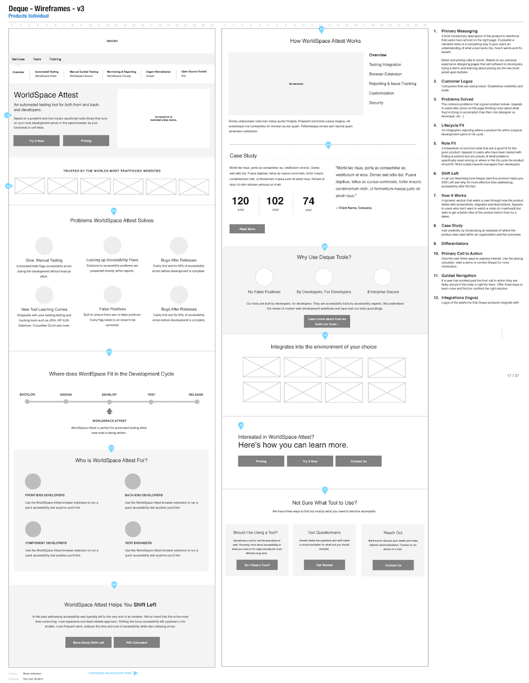
Wireframe from deque.com redesign

  1. Is there a clear, visible indicator set on all active elements as they receive focus? On a wireframe, you cannot tab through the elements so this question is not applicable yet. However, this question serves as an important reminder for designers to remind developers to code a visible focus indicator.
  2. Does the page have meaningful title text, with page-specific information going first? If you look at the wireframe below, it is unclear if the H1 is the “Products” or “WorldSpace Attest.”. As a designer, it is important to work with your content creator to designate a consistent H1.
  3. Is a “skip link” provided at the very top of the page, and is it revealed on focus? In the wireframe below there is not a particular link that says “skip to main content,” so this question would be an “X”. It is possible that it is an intentional design choice to not build a skip link, but instead, you build a table of contents that is accessible. This question will spark that important accessibility discussion.

In Conclusion

Using these heuristics is a fantastic way to move accessibility upstream in your product lifecycle. The most cost-effective and least stressful way to ensure the quality of your software is to catch accessibility defects as early as possible in the design phase.

Accessibility heuristics can help you get started “shifting left.” They are meant as standalone considerations to add to your design toolbelt, so you can progressively approach your designs in a more inclusive way. We hope you enjoy them!

Denis Boudreau

Denis Boudreau

Denis is a Principal Web Accessibility Consultant and currently acts as Deque's training lead. He actively participates in the W3C, the international body that writes web accessibility standards, as a member of the Education and Outreach Working Group, where he leads the development of a framework to break down accessibility responsibilities by roles in the development lifecycle. He is also involved in the Silver TaskForce, where he contributes to the development of the W3C's next generation of accessibility standards.

New APIs, Voice Control and other Accessibility Changes in iOS 13

When it comes to Mobile Accessibility, iOS is the Gold Standard, and iOS 13 brings more distance between it and its competitors. If you’re familiar with iOS Accessibility, these changes will feel like welcome additions. If you’re not familiar with iOS Accessibility, you should play around with the iOS Accessibility Settings menu for a bit before reading!

Many of the changes they’ve made effect and interact with existing technologies in meaningful ways, including:

  • Allowing a system-wide configuration for auto-playing media.
  • Voice Control: A brand new Assistive Technology.
  • New APIs that make Custom Accessibility Actions easier for developers.

Voice Control

Imagine, you come back from deployment overseas. You lost the use of your hands in a combat operation. You start to realize how dependent you are on this ability. You find it difficult to order your family a pizza, text your children, maintain a blog, and collaborate effectively with peers. Wouldn’t it be great if you could easily control your phone with your voice?

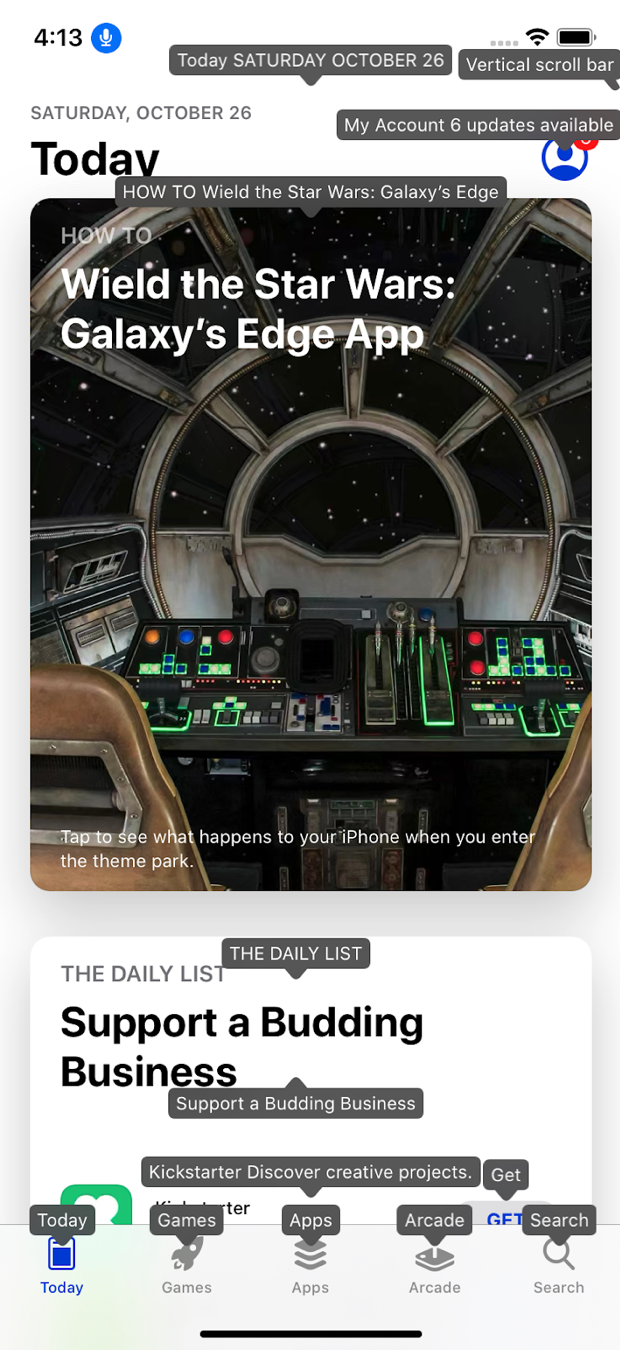
Screen shot of iOS app with voice control annotations

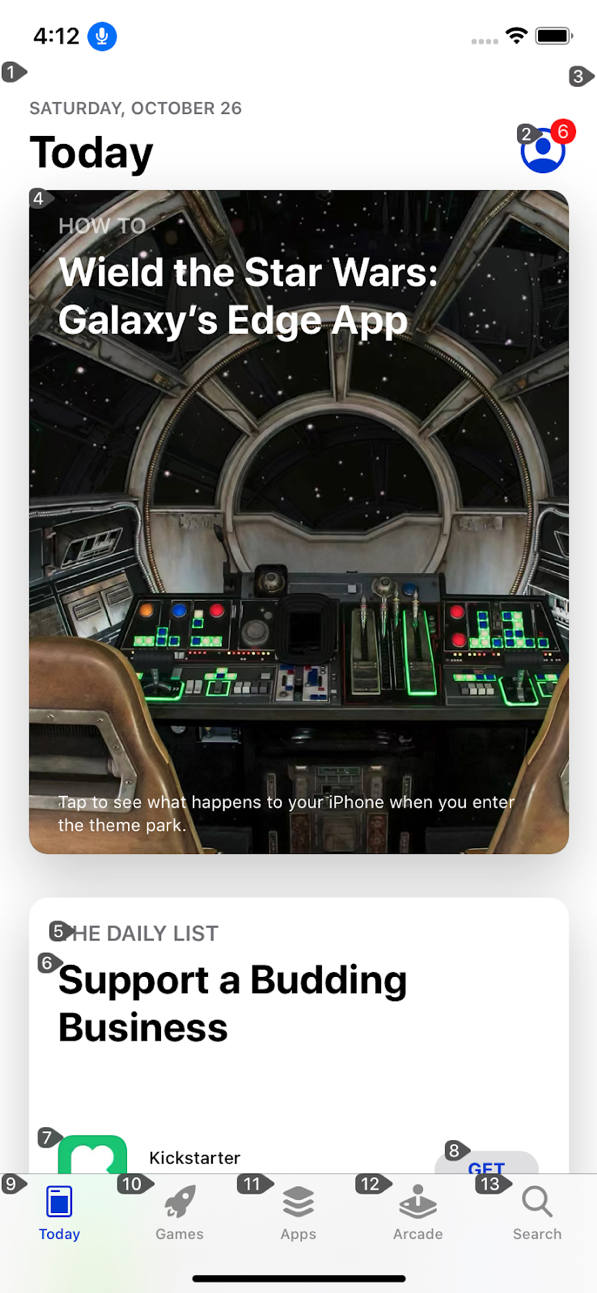
Voice Control is a technology aimed at helping iOS users with physical disabilities accomplish this. When Voice Control is on, an overlay appears with Numbers for each active element. You can then use these numbers to reference and act on individual controls. Voice Control lacks an effective “first time user” introduction, so discovering proper voice command format was a little difficult– at least by Apple Product usability standards.

The Voice Control commands I have successfully tested are:

  • Show Names: Changes the overlay to display Names.
  • Show Numbers: Changes the overlay to display Numbers.
  • Tap 1: Clicks the first control on the screen.
  • Tap “Apps”: Clicks the control labeled Apps.
  • Increment {Number/Name}: Increments an adjustable control.
  • Decrement {Number/Name}: Decrements an adjustable control.
  • Go Home
  • Go Back
  • Show me what to say. ? Love this one!!!

I still want to attempt to utilize CustomAccessibilityActions from VoiceControl and perhaps attempt to explore deeply interactive controls (think: carousels or calendar widgets). However, my experience so far with Voice Control has been great. High learning curve aside, Voice Control is an awesome addition to the iOS Accessibility family.

Watch me use VoiceControl here for some quick and easy accessibility testing:

iOS Accessibility Testing: Voice Control to the Rescue!

One of the things I love about iOS and Voice Control is the potential it has to simplify the iOS Accessibility Testing Process. Below are a few problems I have with the way the testing process is now:

  • As a developer, toggling VoiceOver On and Off wastes precious seconds to check for trivial things. Ex: Was that label added properly?
  • As an Accessibility Tester, the process becomes repetitive, and any time I can save for every screen I test is precious.
  • In particular, ensuring that every actionable control can be activated by assistive technologies is painfully slow!

Voice Control can significantly help both of these scenarios! Let’s talk about a couple of specific examples.

Speed Up Focus Order Testing (WCAG 2.4.3)

One of the aspects of Accessibility Testing that consumes a lot of time is Focus Order testing. Painstakingly ensuring that every item on a screen is focusable by VoiceOver and SwitchControl is difficult and takes a lot of time, even for experienced testers. If only we had something better! Wait for it…

While playing around with Voice Control the following has become obvious:

  1. Everything you can activate in Switch Control you can activate in Voice Control.
  2. Everything you can activate in Voice Control you can activate in Switch Control.

We can take advantage of this information in Accessibility Testing! Imagine taking a glance at one image and knowing that every VoiceOver, Switch Control, and Voice Control user can activate every control in your application. Well here you go:

Screen shot of iOS app with voice control annotations

From this image alone we can conclude that every control is:

  • Actionable in VoiceOver
  • Actionable in Switch Control
  • Actionable in Voice Control
  • AND there are no blatant focus order issues

Voice Control testing is faster than Switch Control testing. However, Switch Control still has its own set of considerations, particularly involving control groupings and usability.

Know your content and your users and test with whichever technology makes sense for you, but once you have tested with one the other becomes a significantly lower priority.

iOS Accessibility Testing for Developers

I get this question all the time:

“What testing should be done as part of the development process and what should be left for Accessibility Experts?”

My answer has always been that developers should:

  1. Make sure every active control has a descriptive name and can be activated.
  2. Perform automated Accessibility Tests.

Asking developers to do full Accessibility Assessments is not reasonable. I work with many brilliant developers here at Deque who have an awesome passion for Accessibility. We live and breathe this stuff here. Maybe a handful of them could do an Accessibility Assessment that wouldn’t get laughed at by an Accessibility Expert. Even understanding what types of images need descriptions vs. what’s decorative is a decision that should be reviewed by an expert.

However, there is no reason an Application should get released with controls that cannot be activated by Assistive Technologies. This said, minimizing a developer’s time testing their application and maximizing their time writing code is important. This leads us to Voice Control… check out this beautiful screenshot below!

screenshot of iOS app with labelled active elements/controls

Remember what my first goal for developers was?

  • Make sure every active control has a descriptive name and can be activated.

Voice Control makes checking for this trivial! The best part: Voice Control can be left on and not affect the standard use of the device. So a developer doesn’t have to Toggle it On and Off. This makes for a very quick test and an Accessibility Testing cycle that no developer can object to!

Conclusion: Every sighted developer should do basic Voice Control testing. There’s no reason not to. It trivially prevents the most severe set of blocking Accessibility issues you can find in iOS Applications.

Accessibility Setting: Disable Video Autoplay

iOS 13 introduces a new system-wide Accessibility Setting: the ability to disable autoplay videos. Also, for a blind person, there may not be much of a difference between a video and, say, a podcast.  So, let’s expand this to any auto-playing media.

The ability to disable autoplay media System-Wide is a powerful thing for users with disabilities, and this subtle feature should not be dismissed. However, it also will take time for the development community to adopt this setting. This feature has been supported individually on many applications for a period of time– especially applications whose primary purpose is to display media, such as YouTube or Facebook.

Unifying these settings in a commonplace that is also easy for other applications to respect is very valuable. Especially since most other autoplay media is significantly less valuable than that of Facebook or YouTube(*cough* advertisements).

WCAG 1.4.2 Conformance Implications

This API directly relates to WCAG 1.4.2 – Audio Control. Quoting from the WCAG understanding document, “Individuals who use screen reading software can find it hard to hear the speech output if there is other audio playing at the same time.”

This setting gives users the ability to avoid this scenario. In WCAG grammar, respecting this setting is a Sufficient Technique for adhering to this success criteria.

In this developer’s opinion, NOT respecting this setting is a violation of this Success Criteria, though I’m sure WCAG purists would shoot me down on that one, as “alternative mechanisms” would remain conformant. At the very least, respecting the “isVideoAutoplayEnabled” setting is an iOS Best Practice and application developers should respect this setting before auto-playing any media for more than a few seconds.

Plus, it’s easier than maintaining your own mechanism for doing this, I mean, check out how easy this is:

UIAccessibility.isVideoAutoplayEnabled iOS API Documentation

If UIAccessibility.isVideoAutoplayEnabled {
  // Autoplay annoying media
} else {
  // Don’t autoplay annoying media.
}

New Developers API: UIAccessibilityCustomActionHandler

UIAccessibilityCustomAction.Handler iOS API Documentation

UIAccessibilityCustomActions are a powerful tool for those developing Accessibility iOS Applications. They allow you to associate multiple actions with one focusable target. This is great for allowing VoiceOver or Switch Control users to perform actions that would normally be performed by gestures, such as flicking the Contact Card of your arch-nemesis to the right to delete them. Muhahaha!!!

The new Handler API makes creating these actions easier. What before required an Associated Target and Selector is now a simple Closure. Just associate your custom Action with a Name and a Handler, and this Handler will be performed when VoiceOver users activate the action.

In technical terms we exchange this:

init(name: String, target: Any?, selector: Selector)

For this:

init(name: String, actionHandler: Handler)

While this is not a huge improvement, it does make this process easier. Also, it solidifies Apple’s commitment to an awesome Accessibility design pattern with a functional development approach that feels more modern.

Summary

There are no groundbreaking Accessibility changes in iOS 13. In particular, there are no significant VoiceOver updates. However, there are some welcomed tools and solid iterative improvements that show Apple’s commitment to users with disabilities. Also, Voice Control is a new, awesome tool and should become a part of every Application Development Team’s testing process.

Chris McMeeking

Chris McMeeking

Chris McMeeking is a software engineer and architect at Deque Systems, leading development efforts on Deque’s native mobile accessibility analysis products. His journey in accessibility began through a project at the University of Michigan, The ASK Scanning Keyboard. This application won multiple awards including the $100,000 Intel Innovator’s Award, runner up at the Mobile World Congress, and the Student of Da Vinci award from the Multiple Sclerosis foundation. Chris is the lead developer behind the Android Analyzer, and an active member of the task force developing these new accessibility mobile standards.

One of the most fantastic things about working on axe-core is seeing the kind of community that is developing around it. One of the ways this expresses itself is in public contributions. Which is why we are able to release new localisations as part of axe-core 3.4.

Localisations

In axe-core 3.4, the following localisations are now available:

  • English (default)
  • French
  • German (limited)
  • Japenese
  • Spanish (new)
  • Brazillian Portuguese (new)

We want to thank our public contributors for these translations, specifically nvdaes for the new Spanish translation, Thiago de Oliveira Pereira for the Portuguese translation, and Honoka Hatakeyama for her continued contributions to the Japanese localisation. To learn about how to use localisation, see the axe-core API docs. You can also find information about how to create your own localisation. We welcome anyone interested to contribute new translations to axe.

Lastly in the translations category, are now including the language code in the “learn more” URLs. This is going to allow us to also translate the Axe-core rule pages on Deque University.

New rule: aria-roledescription

We have created a new aria-roledescription rule for axe-core 3.4. This rule replaces the aria-roledescription test from aria-allowed-attr. By testing aria-roledescription attributes in its own rule, axe-core is better able to handle edge cases and give more accurate remediation advice.

Test axeVersion in axe.configure

Custom rules are a fantastic feature of axe-core, which allows reconfiguring rules, and even adding in entirely new rules, tailored to the environment they are tested in. By including the axeVersion a custom ruleset is built for, axe-core will be able to verify that the ruleset is compatible.

Axe-core custom rules follow semantic versioning. A custom ruleset built for axe-core 3.4.0 will be compatible with all versions released after 3.4.0, up until version 4.0.0. For more details, see axe.configure API docs.

Rule Deprecations

Three rules have been deprecated. For the checkboxgroup and radiogroup rules, while we recommend that most groups of checkboxes and radiobuttons be wrapped in a fieldset, we have seen scenarios where other solutions were preferable. In order for axe-core not to give inaccurate recommendations, these are deprecated. Similarly for video-description, while we recommend that you always check if a video needs a description, due to the lack of support in browsers for the description track, we do not recommend using this as a way providing audio descriptions.

These rules will be disabled by default as of axe-core 3.4, and will be removed when we release axe-core 4.0.

Other Changes

Noteworthy bug fixes include:

  • Ensure non-printable characters aren’t reported for color-contrast#315
  • role="status" fails label check #342
  • Prevent getElmScrollRecursive failing on SVG in IE #525
  • Support elements hidden through clip-path #1001
  • aria-describedby reports referencing error, for empty spans that will have error messages. #1151
  • Ignore ligature fonts in label-content-name-mismatch#1635
  • Update tags to wcag21aa for avoid-inline-spacing#1698
  • Non-localized messages (e.g., Fix any of the following / Fix all of the following) now appear in the proper localization language #1750
  • aria-required-children Treat nodes without content as empty #1762
  • img role=presentation now recognized as valid #1803
  • Allow aria-readonly on role="listbox"#1821
  • Fix category tag in meta-refresh#1835
  • Scroll element into view horizontally when testing color-contrast#1845

For a complete list of changes see the axe-core changelog.

Availability in Deque Products

The axe-core 3.4 release will be made available soon for WorldSpace Attest, Comply, Assure and axe Pro.

Wilco Fiers

Wilco Fiers

Wilco is the principal product owner of axe-core and axe DevTools at Deque Systems. He is based in the Netherlands and has worked in accessibility for over 18 years. During this time, Wilco has worked in auditing, consulting, standards authoring, and accessibility tool development. Notable work includes being project manager of WCAG 3, founding chair of ACT Rules Community, lead developer of axe Linter and WCAG-EM report tool, and industry advisor to the EU's Web Accessibility Directive Expert Group.

Tags:  axe-core news

PAUSE: Before we dive into the content below, feel free to check out our blog post that is an introduction to feed role attribute.

GO: The digital landscape is constantly growing and evolving in the ways it delivers content. With fewer clicks, but more of scroll wheels, designers are experimenting more and more, trying to make users happy with different experiences.

One such design is the ‘Infinite Scrolling’ – one that loads the content continuously as users scroll down the webpage/screen. This was designed to eliminate the need for paginations, and it had great success in social media by and large.

While eliminating paginations, this design, when implemented in eCommerce and other domains, eliminated certain user groups like people with disabilities from accessing such sites at length. The World Wide Web Consortium’s (W3C) WAI-ARIA 1.1 came to the rescue with role=”feed”, which would help screen reader users access the infinite scrolling content. But does that fix the accessibility of infinite scrolling for types of disabilities? Let’s examine!

Making Infinite Scroll Accessible

Role=feed makes infinite scroll accessible for screen reader users. Infinite scrolling allows a user to continuously scroll through a web page without having to click through pages of content. Infinite scrolling can be found on many popular social media sites, like Twitter. However, Infinite scrolling is not always the best option for your website.

Source: Infinite Scrolling is Not for Every Website

Why the Infinite Scroll is an Accessibility Violation

Infinite scroll helps us avoid pagination so users can keep on scrolling our content without clicking another link. Because of this, marketing and design teams jumped on this technique when this design pattern came into existence. The infinite scroll was not just on Twitter and Facebook– soon it moved to content-rich sites like news portals, blogs, and e-commerce stores. However, infinite scroll is not perfect, and, depending on who you ask, it can actually be problematic.

Infinite scroll was and is not accessible to a wide variety of users with disabilities. While role=feed makes infinite scroll accessible for screen reader users, it leaves a number of users with disabilities behind:

  • Keyboard-Only Users: keyboard-only users cannot access the content inside an infinite scrolling feed. When tabbing from element to another element, the focus moves from the last element that is currently visible on the screen to the next element in the DOM order.
  • Speech Recognition: users who use Dragon naturally or any other speech recognition software are completely left out of the infinite scroll experience.
  • Screen Reader Users: while infinite scroll becomes accessible to screen reader users in browse/reading mode, only those are very comfortable with screen readers (or power users) will be able to identify these widgets. Some less experienced screen reader users might think the page is very long and might miss the complementary/footer region completely.
  • Users who use a Switch Device (people with a motor disability): Imagine the amount of stress and effort you’d encounter if you were a switch control user forced to use infinite scroll to access content. The endless navigation would be extremely time consuming and difficult to navigate if you could only navigate through a series of clicks.
  • Users with a motor disability who don’t use a Switch Device: Image you are a person with a motor disability that is forced to browse through a set of content in the infinite scroll and found an item you wished to checkout. If you have a tremor and you’re a mouse user, you could accidentally move the mouse past the item and the navigation would trigger more content to load.
  • Low Vision Users: users who have low vision tend to use screen readers, screen magnification software, or windows high contrast mode. It is extremely difficult for a low vision user to access content wrapped inside an infinite scroll. Being a low vision user myself, I can say with certainty that it is very, very difficult for me to use infinite scroll because I tend to use a mouse with screen magnification. My hand and eye are in continuous coordination because my screen is magnified up to 6x times. When content is continuously loading, it is very stressful on my eyes to find the right content on the screen.
  • Users with Cognitive Disabilities: ADHD, Short term memory loss, etc. are often forgotten about in design and development. Infinite scroll has a high cognitive load that is extremely taxing for people with cognitive difficulties.
  • Web/Native Mobile Usability: Infinite scrolling on a responsive web or a native mobile app can lead to never-ending swipes or scrolls. With a smaller screen real-estate filled with many controls, an infinite scroll of content adds a layer of difficulty to a usable experience.
  • People without disabilities: I have personally seen people without disabilities struggling to understand and use infinite scroll. You can read more on why infinite scroll has usability issues here:

Do Screen Readers Support Role=Feed?

Just like many developers and the accessibility professionals, I initially believed that role=”feed” would solve any accessibility-related problems for infinite scrolling. However, this excitement only lasted until I tested how a screen reader interacted with this new role. Here’s what I found:

Assistive Technology Internet Explorer FireFox Chrome Mobile chrome Mobile Safari
JAWS Supports Supports Supports NA NA
NVDA Supports Supports Supports NA NA
Talk back NA Supports NA Supports NA
Voice over NA NA NA Supports Supports

The table explains which screen readers are supporting the role=feed currently. As of now, all the screen readers on various platforms seem to support role=feed.
Note: While the role=feed is currently supported, there is a high probability a browser or screen reader update might change this compatibility at any moment.

Accessibility Shortcomings of Role=Feed

Now that we discussed a few pitfalls of infinite scroll, let’s address building a design pattern for an infinite scroll that can address most or all accessibility needs.

The role=feed specification only addresses the needs of screen reader users who browse the web in browse/reading mode. Furthermore, the design pattern “Feed Example by  WAI-ARIA Authoring Practices” does not yet have ARIA Practices Task Force consensus. However, this has not stopped web developers from adopting the usage of role=feed on the infinite scroll. Many developers are not aware of the other groups of people with disabilities that are negatively impacted by infinite scroll.

Reimagining Infinite Scroll as an Accessible Design Pattern

If I were to reimagine an infinite scroll so that would be accessible to groups that we discussed above, I would follow this design pattern:

  • A switch control that can toggle on/off the infinite scroll even before interacting with infinite scroll content. Ideally, the switch control can be placed before the role=feed and can be made visible when it receives keyboard focus.
  • Load more or pagination links must appear once the infinite scroll is switched-off so that user has the luxury of navigating the content at leisure.

In Summary

Web design innovations like the infinite scroll are not inherently bad. However, we need to pause and think whether such innovations allow all users to access our web content and functionality. In this journey, it is not only the ARIA working group, the designers, or the leaders who drive digital inclusion. Rather, it is a cross-functional effort from all teams in an organization that has to, again and again, reinforce that one size doesn’t fit all. Infinite scrolling is one such innovation that with the right mixture of rethinking and empathetic redesign, would become a more inclusive and beneficial web development technique.

Raghavendra Satish Peri

Raghavendra Satish Peri

Raghavendra Satish Peri is a digital accessibility evangelist working at Deque Systems as Product Manager [Accessibility] breaking web accessibility & mobile accessibility challenges. He authors an Accessibility Blog & is galvanizing the adoption of accessibility by inspiring the local tech community with meetups and mentorship. When away from his computer, Raghava can be found at local cafes & restaurants sampling cuisines, attending local meetups, listening to audio books or writing on his Personal Blog.

Free Upgrade Available Within Current axe Chrome Browser Extension;

Empowers Web Developers to Progress Beyond Automated Accessibility Testing With No Additional Expertise Required

HERNDON, VA – September 30, 2019 – Deque Systems, a leading accessibility software company specializing in digital accessibility, today announced a key addition to axe, the popular web accessibility testing browser extension. Axe Pro Beta features enable developers to run both automated and intelligent guided tests against their websites and applications, helping ensure they are accessible to all users, including people with disabilities.  Still in beta, axe Pro is available for free for a limited time and will continue to be improved based on feedback from developers everywhere.

“Axe Pro essentially lets every developer function as an in-house accessibility expert,” says Preety Kumar, CEO of Deque Systems. “It helps developers identify more areas for accessibility optimization, which is important as the rate of digital lawsuits continues to accelerate.”

Axe Pro builds upon the strengths of Deque’s open source axe accessibility rules engine by enabling developers to conduct intelligent guided tests, based on simple question-answer interactions that don’t require additional accessibility expertise. Available through a web portal within axe, axe Pro escorts developers through inspections of their websites and applications and returns reports highlighting areas for optimization. For example, axe Pro will highlight images where the accompanying alt text may not match the image.

Developers can typically identify about half of all critical accessibility blockers through axe. Augmenting the use of axe with additional Pro features will help developers increase their testing coverage with no additional resources needed.

“Enlisting the participation of the developer and accessibility community has always been a hallmark of Deque’s approach. It’s the reason we have open-sourced our axe rules libraries and also the reason we are soliciting developer input on these new additions to axe,” continues Kumar. “This feedback is essential in our efforts to continually enrich and expand our offerings, helping developers implement accessibility comprehensively, confidently and easily.”

ABOUT DEQUE:

Deque (pronounced dee-cue) is a web accessibility software and services company, and our mission is Digital Equality.  We believe everyone, regardless of their ability, should have equal access to the information, services, applications, and everything else on the web.

We work with enterprise-level businesses and organizations to ensure that their sites and mobile apps are accessible. Installed in over 250,000 browsers and with over 1,000 audit projects completed, Deque is the industry standard.

News Media Contacts

At Deque:
Ryan Bateman, 703-225-0380, marketing@deque.com

Deque Systems

Deque Systems

Deque is the global leader in digital accessibility, helping the world’s top enterprises build inclusive products, services, and experiences and achieve lasting compliance. Recognized by leading industry analysts for its AI-powered tools, comprehensive services, and developer-trusted solutions, Deque delivers the industry’s most complete accessibility offering. The Axe platform, anchored by Axe-core, has more than 3 billion downloads and 875,000 installed extensions, making it the global standard for accessibility testing. As a pioneer of people-first accessibility, Deque applies a human-in-the-loop approach that blends expert insight with AI innovation to advance its mission of digital equality for all.

The trend of web development is heading in the direction of JavaScript frameworks and libraries to build single-page apps (SPAs). With this new trend, in turn, comes a whole new set of web accessibility concerns. These concerns are unique to single-page applications because of the behavior of client-side rendering that adds a layer of complexity when trying to understand and create accessible applications.

Angular is no stranger to the accessibility concerns that come with it being a javascript framework. In fact, Angular has become one of the most popular of the javascript frameworks. It is a powerful and robust javascript framework with the ability to create complex websites.

While Angular is powerful and robust, developers still need to be aware of the accessibility issues that could be created while using this framework. While the approach and key concerns are largely the same in Angular as with other web content when trying to meet WCAG standards, it is important to understand the key accessibility issues that exist within Angular.

Issue #1: Page View/Titles

Angular is a  single-page application and, as a result, a majority of the transitions (i.e moving to a new page) will not involve a page reload. The tendency of many developers is to think “single page” equals “single title” and there is no way to fix the issue. However, this assumption is not true. There are ways in which developers can carefully manage the page title change within the components or transitions, such as using title service that comes within the framework itself.

Issue #2: Keyboard Navigation

Keyboard navigation can be tricky in Angular. There is one main culprit when it comes to keyboard navigation, and that is the use of non-semantic HTML. As cool at may be to have a nicely designed button made with all <div> tags and CSS, without proper semantics keyboard users will not be able to the content properly.

Thanks to Angular’s straightforward use of binding syntax to a component you can literally add click events on HTML tag. When possible, it is important to use semantic HTML to make keyboard navigation easier.

Issue #3: Focus Management

By far, the largest accessibility issue that Angular applications face is the concept of “focus management.” Although the load times and speeds of websites greatly increase with asynchronous loading of content, accessible users are left behind.

When content is asynchronously added on the page, screen readers users and keyboard-only users can lose context of where they are on the page or even be unaware that new content has appeared. This can lead to a very difficult and frustrating experience when a person using assistive technology is trying to use your web content.

Strategies to Follow

Angular is a fantastic framework that provides the ability to create clean, fast, and wonderfully interactive applications that move web development into the future. However, there is a cost from an accessibility perspective if it is not implemented properly.

Keep the following points in mind when trying to make sure your application reaches all audiences:

  • If a page/view changes, manage the page title properly
  • Be sure to use proper semantic HTML where possible
  • No semantic HTML, then use ARIA to properly markup the content.
  • Try to limit the use of custom HTML tags
  • Be sure to manage focus properly whenever asynchronous content is used.
  • Use accessibility testing tools such as axe-core to test your content for accessibility issues as you code your components

In Summary

If you’re not aware of the critical accessibility issues and above strategies in your Angular application, you can leave accessible users in the dust. However, if you can follow the strategies above, and keep up to date on the latest accessibility support within the framework, you will begin to create Angular applications that reach a much wider audience!

For more information on Angular and accessibility, check out our new Angular Accessibility course on dequeuniversity.com that deep dives into more advanced issues, technical remediation and testing strategies for your application!

Mark Steadman

Mark Steadman

Mark is an accessibility developer services consultant at Deque. Mark has been working in the accessibility field for 4 years now. He is extremely passionate about the work that he does and strives to make all content on the web/mobile accessible for all. Mark's main focus is researching single-page applications (EmberJS, ReactJS), how accessibility affects them, and how to remedy the issues that are in the frameworks.

Developers are constantly learning new tools, tech stacks, and development practices. When they’re told they have to learn accessibility, it can often feel like an unwelcome and overwhelming disruption, slowing them down and forcing them to rewrite what they thought was perfectly good code.

The good news is accessibility tools and training are more developer-friendly than ever. Automated accessibility tools fit seamlessly into modern development environments, and there are new ways for dev teams to build their understanding of what accessibility means in practice and how people with disabilities experience technology. Here are some great ways to get your dev team onboard with accessibility.

Start Simple with Free, Open-Source Tools

If developers can automate something, they will. When accessibility can be automated, developers are much more likely to start incorporating accessibility into their development process. Until recently, “automated accessibility testing” meant cumbersome “scan and report” tools that could only be used once your site was practically ready to be deployed (if it hadn’t been deployed already). Dev teams would get long lists of accessibility issues that could require a fundamental reworking of components, causing expensive and frustrating slow-downs in the development cycle.

Luckily, accessibility tools have come a long way, and developers can now access automated accessibility testing tools that can run as part of their regular integration testing, unit testing, and browser testing. Issues are raised while they’re coding, making fixes much more efficient. With free tools like axe, your dev team can start testing for accessibility in minutes.

Axe is Deque’s open-source accessibility rules engine available as a browser extension or as an API for testing web, Android, iOS, and Windows applications.

It’s important to note, however, that automated accessibility testing tools can only catch 30-50% of your accessibility defects. Your application will still need to undergo manual testing with assistive technology tools, especially if your organization has any concerns about compliance with accessibility regulations or legal risk. Nevertheless, the accessibility work that can be accomplished in those early stages of development will save your organization significant time and money.

Show Them the Real-World Impact of Accessibility

Awareness Labs

Most developers may understand what a screen reader does in theory, but may have no idea what it’s like to actually use one or how they operate. Experiencing Assistive Technology tools first-hand and understanding how they interface with a web browser and web content can be a truly eye-opening experience. It can also spark your developers’ technical curiosity and creative problem-solving skills, motivating them to apply more thought and time to solving accessibility problems.

Awareness Labs are also a great way to rally your entire development team around accessibility. They not only empower your developers, designers, and testers to understand how people with disabilities experience technology, but they also show how their specific role fits into the overall accessibility of their site or application.

We have seen the impact that our Accessibility Awareness Lab has made on many of our client teams and how important it is for people to try these tools and speak directly with people who use Assistive Technology in their day-to-day lives. Learn more about our Accessibility Awareness Lab and the difference it can make for your team.

User Testing

Another way to help your dev team understand the real-world impact of accessibility is to have a user (or users) with a disability perform user testing on your application in front of the team. There are few things more powerful than watching someone struggle to use the system that you have invested countless hours, weeks, and months creating.

It’s also an extremely effective way to illustrate the importance of actually testing your application with assistive technology instead of simply assuming that your accessibility code fix will work. We’ve seen developers march straight back to their work areas to start fixing the issues they’ve witnessed.

In Summary

Software developers play a key role in every accessibility project and program. When done correctly, their software means the difference between someone with a disability living an independent, productive life or needing outside help to complete everyday tasks, even in the workplace.

From banking to grocery shopping to collaborating online, accessible software can mean anything from a minor convenience to a total game-changer, enabling someone to excel personally and professionally. Once developers are motivated and understand the importance of accessibility and are equipped with the right tools, accessibility can transform from a burden into the only way to code.

Dylan Barrell

Dylan Barrell

Dylan is Deque's CTO and leads product development initiatives. He works to help to build a barrier-free web by making it really easy for developers, quality assurance engineers and content writers to create accessible applications and content. Dylan has an MBA from the University of Michigan and a BS from the University of the Witwatersrand.

Building an accessibility program is key for maintaining a culture of accessibility in the workplace. It also ensures that accessibility is scalable and cost-effective. Depending on your organization, an accessibility program can be centralized or decentralized.

In a centralized accessibility program, or “hub and spoke” model, the responsibility of accessibility falls to a single group within the organization– accessibility management does not fall to each individual business unit. The inverse is true for a decentralized accessibility program, i.e. accessibility management falls to each individual business unit.

In today’s post, we will discuss the advantages and disadvantages of each program type below.

Centralized Accessibility

A centralized accessibility program manages both the accessibility testing and operational components of accessibility in one unit. Oftentimes, organizations that are large/enterprise and compliance-driven choose this approach.

In practice, I’ve observed that our clients’ centralized programs commonly sit under their Digital/Digital Experience/Digital Transformation divisions. In some cases, the program sits under Legal and Compliance. These programs are generally not under IT (web experience).

Advantages

One major advantage of this approach is that accessibility testing can be measured and tested in one location across all of the businesses properties, which yields consistent results. It is also much easier to measure and assess the risk of accessibility in a centralized model. Finally, when accessibility is centrally managed, it is much easier to gain buy-in and funding from the executive team to make the accessibility program sustainable.

Disadvantages

One disadvantage of this approach is that it can be difficult to embed accessibility as a cultural best practice at the grassroots level. Content owning teams may feel that accessibility is a burdensome requirement being implemented from above, and, as a result, are less motivated to proactively address accessibility.

Additionally, a centralized approach towards accessibility can create a layer of bureaucracy or a bottleneck that makes it difficult to quickly implement or change accessibility features at the product level.

If your organization chooses the centralized approach, it’s important to focus on a strong policy that governs the software development lifecycle. It’s critical to have an executive mandate that supports this governing policy.

Decentralized Accessibility

A decentralized, or distributed, accessibility program often works for small organizations as it provides high-touch management of product accessibility. From our clients’ case studies, I’ve observed that decentralized accessibility programs commonly sit under IT.

Advantages

This approach works very well when grassroots roles, such as developers or designers, care deeply and are well-trained around the topic of accessibility. This approach is also very advantageous for organizations that need to respond quickly to their customer’s needs for individual products.

In a centralized approach, it is very important to have a strong governing policy for accessibility. However, in a decentralized approach, developers and designers proactively want to implement accessibility so it doesn’t disrupt their product development cycle down the line.

Disadvantages

As previously mentioned, it can be difficult to consistently test and measure for accessibility across multiple business units or teams. Oftentimes, a decentralized model can give the false appearance of low risk; however, the risk is actually spread out over multiple business units.

Decentralized accessibility programs can also struggle to get executive buy-in. The distribution of effort makes budgeting and accountability more complicated, and it can be more challenging to present a clear, unified course of action.

In Summary

It goes without saying that both centralized and decentralized accessibility programs have their advantages and disadvantages. The most important factors that will influence this decision should be your organization’s size, need for rapid product change, or governing policy around accessibility. Whichever program your organization chooses, structured accessibility programs are a great way to scale implement a cost-effective approach to accessibility.

Greg Williams

Greg Williams

Greg Williams is the Senior Vice President & Chief Architect at Deque Systems, Inc. He oversees program development and operations for some of Deque’s largest customers, helping them to build mature, sustainable accessibility programs.

Prior to joining Deque, Greg spent more than 30 years in the information technology field focusing on large, complex program operations for Fortune 40 companies and before that served in the United States Navy for a number of years. He had great success as the founder and owner of the Digital Accessibility Program Office for State Farm Insurance, building their practice from the ground up into one of the highest maturity level programs in the world between 2013 and 2018.

Greg has always been passionate about diversity and inclusion and has extended this passion to the disability and accessibility community - joining Deque Systems in 2018 to help launch and mature similarly successful programs across the globe.

In June of 2019, Deque reached a significant milestone: we have awarded over 2,000 Deque University scholarships to people with disabilities! (We are currently at 2030 and counting.) These scholarships were introduced in 2016 in support of Global Accessibility Awareness Day (GAAD). The main purpose of these scholarships is to increase job opportunities for people with disabilities by providing them with free access to high-quality accessibility skills training. The accessibility career track is a promising one, and people with disabilities are uniquely qualified through their life experiences to enter into this field. They just need the technical training, and that is what Deque University provides.

Our courses are free to scholarship recipients, and are designed to be fully accessible to people with disabilities and assistive technologies, helping overcome cost and access barriers that limit the usefulness of other skills training programs to people with disabilities.

With the intention of inspiring action for potential future scholarship recipients, I’d like to dedicate the rest of this post to sharing quotes and stories we’ve heard over the last three years.

Thank you to all the amazing scholarship recipients for your dedication to the materials and for sharing your kind words and feedback. Thank you to everyone else for helping spread the word about the availability of the scholarship program.

What’s the Deque University Scholarship Program

If you have a disability, you qualify for a scholarship to access to Deque’s in-depth web accessibility curriculum for a full year (normally $315) at no cost.

Why is Deque offering this scholarship? Here are a few of our reasons:

  • The demand for accessibility professionals is growing. People with disabilities have a lot to offer in this field. You live the experience, so in many ways, you’re already experts! You still have to learn the technical skills though, and that’s where the Deque University classes can help.
  • We recognize that employment for people with disabilities is often difficult, with discrimination during the hiring process and barriers to employment all along the way, including barriers to acquiring the skills necessary for employment.
  • Having a disability can often be expensive, both in terms of actual expenses and the cost of lost opportunities due to discrimination.
  • Deque’s mission is to achieve digital equality for all. This a core part of our mission.

David Sexton’s Success with the Deque University Scholarship

David Sexton headshot

Deque and David have been chatting for a few years now about his climb within the accessibility industry. Thank you, David, for agreeing to share such personal information in hopes of inspiring others to do the same.

In 2016, David came back to the United States after living and traveling in India for six years. He had previously been studying electrical engineering, but instead of pursuing a degree decided to gain life experience by traveling. Being a screen reader user, David came back and applied to accessibility jobs. He applied to Workday, and found that he was familiar with technical terminology like ARIA, but unfamiliar with industry-specific terminologies, such as the Web Content Accessibility Guidelines (WCAG). At that time, he did not receive the job at Workday.

Still seeking employment a year later, David applied to another accessibility subject matter position but was passed over for another applicant. This is when David decided to try to learn more about accessibility. He found the Deque University scholarship and took advantage of its courses. He was able to put vocabulary and terminology together with what he already knew. David approached the same company again, armed with his new knowledge and received a contracted position at $40/hour. The position later turned into a full-time position with benefits.

David was able to obtain this position without being IAAP certified or having a college degree. After eight months at this company, David was hired at Google to work on Chrome and ChromeOS. This position was also contract-based but at $70/hour. A year later, David was hired at Workday with a similar hourly rate but with benefits. David is amazed that with just the help of the Deque University scholarship, he went from being unemployed to a full-time employee.

David is now currently a product manager at Workday. His advice to those starting their accessibility career is to gain experience through contract jobs and leverage the knowledge of Deque University, you don’t need a college degree or an IAAP certification. The demand for accessibility professionals is growing, and it’s a great career opportunity.

More Testimony from Deque University Scholarship Recipients

We surveyed our Deque University scholarship recipients to gain insight into the program’s success. Initial results from the survey are as follows:

  • 72.81% of recipients are preparing for a career in accessibility
  • 65.71% of respondents said they found Deque University very helpful in furthering their career
  • 23.48% of recipients who received this scholarship completed the IAAP’s Certified Professional in Accessibility Core Competencies (CPACC) certification.

Below are additional testimonials from our scholarship recipients that responded to our survey. Thank you all for sharing!

“In general, I think the course content is very high quality. I like that it is available to go back to later too. I have taken many online classes and so often when I need the content later, it has been taken down.” – Alex Marositz, Assistive Technology Specialist, Pasadena City College

“I think this is an amazing resource and offering a scholarship to users with visual impairments is brilliant. It is inspiring to have free access to knowledge that has helped me develop my career. I also think the blend of courses is well balanced, there’s a course for everyone, irrespective of expertise. Keep up the good work.” – Lu Ogbe

“Although I am not currently working in the accessibility field, the opportunity to study detailed material about accessibility issues and solutions has made me a better, more effective employee.” – Mary Ritter

“It’s a great resource for me. I enjoyed earning the Deque certifications, and I like the fact that you keep updating the content to be more and more relevant.” – Marc Thorson

“I think it’s wonderful that you are providing this service to the disability community. I share this resource with many people I meet who are trying to learn more about making the world more accessible. So often disabled consumers do not know how to explain to developers what is needed in technical terms.” – Eileen Rivera Ley

“The courses are well structured and it was very helpful to complete the CPACC certification.

The additional materials provided at each section helps a lot to understand the topic better.” – Mohith BP, Senior Software Engineer

“Thank you for the CPACC study materials! Extremely helpful. Thank you in general for great courses on accessibility.” – Ron Bissessar, Assistive Technology Manager

“You provide thorough and accessible material and I greatly appreciate your work!” – Joseph LaFauci, Technical Expert, Atos ITO North America

Thank you all!

Paul Bohman

Paul Bohman

Paul Bohman, PhD, is the Director of Training at Deque. He created Deque University – both the platform and the web accessibility courses within it – and continues to expand Deque University features with the help of a talented team. Paul travels frequently to provide highly-rated accessibility workshops at client sites, at conferences, and at other events. He is also the Chair of the Certification Committee in the International Association of Accessibility Professionals (IAAP). Paul’s accessibility career started in 1999 and has included teaching graduate university classes in web accessibility. For his doctoral dissertation, Paul researched and wrote case studies about curriculum programs teaching web accessibility at the master's level in the US, London, and Austria.

One of the “business benefits of accessibility” that people like to throw around is that accessibility will improve your site’s SEO. This is technically true, but it’s important to be clear about what accessibility can actually do for your SEO.

Note: In this post, I will conflate SEO with optimizing for Google search. I do realize there are other search engines worthy of consideration; but given that the overwhelming majority of search traffic goes through Google, most SEO work is going to be very Google-centric. Hence, the focus on Google.

Overlapping Best Practices

Here is a list of areas where SEO and accessibility best practices overlap:

  • Descriptive link text
  • Descriptive alt text
  • No informational text inside images
  • Abbreviations
  • Clear writing
  • Descriptive headings
  • Correct use of heading tags
  • Descriptive page titles
  • Accessible PDFs
  • Captioning video/audio content

If you want to dig more into why these are important for accessibility, please check out my recent post on Accessibility Strategies for Your Content Team.

Optimizing for Robots

A favorite adage of Accessibility = SEO advocates is, “If screen reader software can successfully navigate and find stuff on your page, then so can a Google-bot!” So, from an SEO perspective, these practices are important because they can help search bots index your pages more efficiently and help them to determine when a page is or isn’t appropriate for different search terms.

Here’s where things get a little sticky.

  1. Search-bots are trying to determine what your content is about – what words show up, how often, and where. (This isn’t all they’re looking for, but the rest is less important to accessibility.) So optimizing for robots means focusing on keyword optimization and making sure your alt text, link text, headings, etc. include the keywords and associated keywords you want to rank for. But if you prioritize keyword optimization over clarity and readability, it will hurt your accessibility. (And do not use these page elements for keyword stuffing – that’s bad for accessibility and SEO.)
  2. Keyword optimization will help you rank higher, but not necessarily highly. It could move your page from the 17th spot to the 13th spot, but it won’t take you from the 17th spot to the 3rd spot. That’s probably not the kind of business benefit that’s going to inspire your executive to start investing in accessibility.

Optimizing for Search Means Optimizing for Usability

Google’s search algorithms have gotten pretty sophisticated, and how people behave on your site often plays a bigger role in your search ranking than simply have the right words in the right places. If someone goes to your page from their search results only to return to their search a moment later, your page wasn’t the right result for their search query and may rank lower in similar searches. If they go to your page, hang around for a few minutes, and navigate somewhere else on your site, then your page was a good fit for the initial search and will rank more highly in similar searches.

This means that, ultimately, prioritizing usability is good SEO. Creating clear, informative content that is well-structured, easy to follow, and designed to help people quickly find the specific information they’re looking for is good SEO. If people with disabilities can fully engage with your site and find what they’re looking for, your site has the potential to engage up to 1 billion users that your inaccessible search competitors can’t engage. That is a massive business benefit.

This does not mean keywords are not important. If you are writing good, descriptive headings, link text, etc., your keywords and related terms will naturally fit into those page elements. And you definitely want to make sure you’ve got your keyword in your meta description, page title, a heading, and 2 or 3 times in the rest of the page content. If you can’t organically fit a keyword in those places, you may need to rethink your keywords (or rethink your content).

Accessibility helps everyone. Providing an accessible experience for people with disabilities will improve the usability of your content and improve your search engagement across the board.

In Conclusion

Accessibility can absolutely improve your SEO. All of those best practices I listed earlier should definitely be part of your Content Team’s Accessibility Strategy, but think about how all of those elements contribute to the usability of your content for humans and technology. Be sensible about keyword usage, make sure you’re using correct markup, and talk to your design and development teams about the impact accessibility can have on your search engagement.

Caitlin Cashin

Caitlin Cashin

Caitlin is an "Accessibility Decoder" at Deque Systems. She joined the team back in 2011 and has taken on a variety of roles over the years. These days she spends her time exploring the best ways to communicate accessibility ideas and solutions to the general public.