With WordPress powering over 42.9% of all websites, it’s hard to pinpoint another piece of software that has had a greater impact on the state of web accessibility. WordPress is popular for good reason.

Some of the obvious reasons that come to mind include the following:

  • It’s open source (no license fees)
  • It has a reasonable learning curve
  • It can be used for simple websites and can be the backbone of web applications
  • There is a strong community behind it, contributing services, plugins, themes, and to the core project itself

With WordPress, even non-technical people can get a website online in a matter of minutes. Those with more robust needs have extended WordPress into an application framework, powering rich web applications like Pressbooks and YouTooCanRun.

But how accessible is WordPress out of the box? How difficult is it to keep WordPress accessible? And how can you ensure your WordPress website is accessible? That’s the topic of this article. Let’s dig in.

How Accessible is WordPress out of the Box?

WordPress can be very accessible out of the box. The WordPress project has a dedicated accessibility team that continually works to improve WordPress with the aim to “make the WordPress Admin and bundled themes fully WCAG 2.0 AA compliant where possible.”

In practice, what does that mean? The latest official bundle of WordPress themes (the templates that dictate the look, feel, layout, and sometimes functionality of your WordPress site) have been evaluated and vetted against the WordPress Accessibility Coding Standards, which target WCAG 2.0 AA compliance, to be “accessibility ready.” 

From an authoring standpoint, WordPress as a tool aims to conform with W3C’s Authoring Tool Accessibility Guidelines 2.0, or ATAG, but it does not currently do so. This is no easy task, however, as ATAG not only stipulates that the application be accessible for those with disabilities; it encourages all users to create accessible content and to repair accessibility mistakes, all without additional tools or add-ons.

Accessibility team contributor Joe Dolson had this to say about the current state of WordPress accessibility:

“The front-end of WordPress is pretty much in the same place it’s been for years: perfectly capable of being accessible, but it entirely depends on the developer building the site. A poor theme or inaccessible plug-ins make all the difference. The admin has continued to improve—it’s been a hard road to move the Gutenberg editor along towards better accessibility, but progress is being made. That said, it’s a constant battle to avoid accessibility regressions with any new interface component.”

In short, the WordPress community values the importance of accessibility, and it has applaudable accessibility goals, but it still has progress to make. There are still accessibility shortcomings within WordPress out of the box; it is difficult for people with disabilities to author content in WordPress, for example, and it is hard to ensure that content authors don’t create inaccessible webpages.
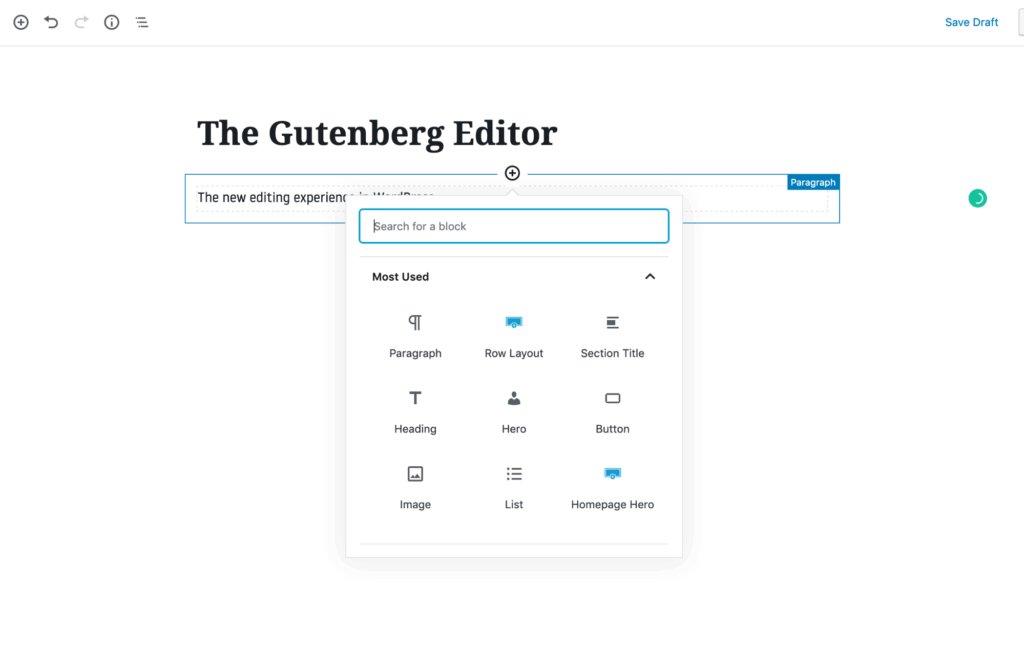
A screenshot of the WordPress Gutenberg Editor

As Dolson mentioned, one notable area that needs improvement is the (relatively) new Gutenberg editor. Gutenberg is WordPress’s current content-editing experience and was released with WordPress 5.0 in December 2018. Gutenberg replaced TinyMCE, a fairly common, open-source WYSIWYG (what you see is what you get) editor that was bundled with WordPress from 2005 to 2018. TinyMCE is a simple editor akin to Microsoft Word or Google Docs. Editing is primarily text-based and has few capabilities to manipulate layout or add rich content (without manually adding HTML or using WordPress shortcodes).

Gutenberg was designed to give content authors more capabilities and to give them more control over their webpages. Authors now have the ability to add “blocks” to their pages, which can be as simple as a paragraph of text or a bulleted list, or as complex as tabs, columns, testimonials, hero areas, and accordions.

Gutenberg is an important topic in WordPress accessibility because Gutenberg was released despite the knowledge that it had significant accessibility issues. In mid-2019, WPCampus released the results of a Gutenberg accessibility audit they commissioned, which included a link to the CSV file of all 90 issues.

It’s clear that the WordPress and Gutenberg teams are dedicated to improving accessibility. The WPCampus audit notes that four accessibility issues were resolved while testing was being done, and an additional 116 were closed between testing and its release. Of the 90 issues raised, only 32 remain open on GitHub at the time of writing.

The accessibility team is focused on a few areas. We’re still working on getting the results of the WPCampus audit resolved, and we’d like to see 100% resolution in 2020. We’re continuing to work on improving the block editor, and we’re anticipating that as plans for moving towards full-site editing develop, that will probably create a significant spike of new issues we’ll need to focus on. That timeline is still an unknown, however.”

—Joe Dolson

While that is the current state of WordPress accessibility, you might be wondering, “How do I make my WordPress site as accessible as possible?”

Accessible Websites in WordPress

I’ll be approaching this question with a focus on the “front end” of WordPress websites—the (typically) public pages that WordPress generates—as opposed to the administrative back end.

WordPress, at its core, is a tool for storing, retrieving, and displaying stored data. Typically, this stored data is content. This means that your WordPress website’s accessibility is largely determined by what data is stored and how that data is displayed.

WordPress has two systems that have a significant impact on accessibility: themes and plugins. WordPress themes control how your website looks, and plugins allow you to add additional functionality to your website. Both are responsible for the underlying code that makes up the front end of your website.

That code can be accessible or have accessibility issues. It can include accessibility features such as skip links or proper ARIA roles, or it can neglect them. The theme can or cannot have adequate color contrast. 

So much of making WordPress sites accessible is evaluating, testing, and selecting the right themes and plugins. 

Let’s look at themes and plugins individually.

Selecting an Accessible Theme

Let’s first talk about selecting an existing theme. Unless it is specifically stated otherwise, you should assume that a theme is not very accessible. Making a theme accessible takes a significant amount of effort and testing, and if someone went through the effort of doing so, chances are they’re going to draw attention to that.

Luckily, the accessibility team has a list of 92 free themes in the WordPress repository that have been vetted and tested for accessibility. 
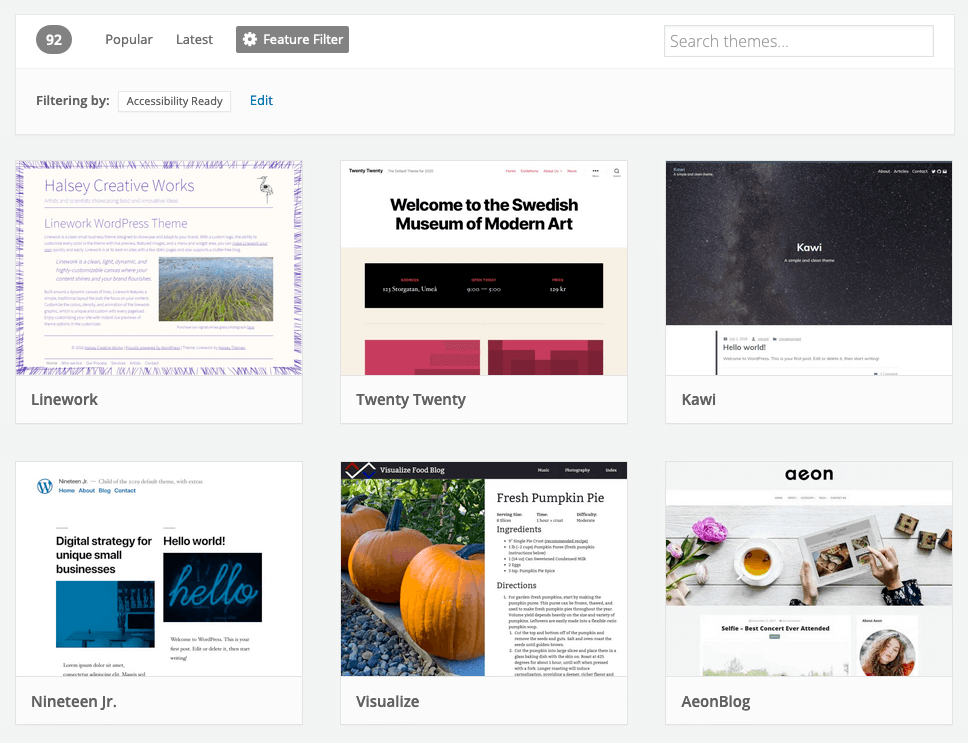
A listing of the WordPress.org themes tagged "accessible"

“The theme review team has begun to introduce accessibility requirements as part of the general requirements for all themes, but those are just getting started, so it’ll be a while before accessibility becomes pervasive in the directory.” Joe Dolson

Now, generally, you get what you pay for. I might sound overly capitalist, but commercial themes typically have more effort, attention, and support put into them compared to free themes. So, if your website is important enough, you might consider a paid theme instead of a free one.

Unfortunately, it’s a bit harder to make a good decision when it comes to paid themes. There really are no checks and balances to ensure a theme advertised as “accessible” or complying with WCAG guidelines actually does so. In fact, many of the themes I came across when researching this article that were labeled “accessibility ready” had glaring accessibility issues.
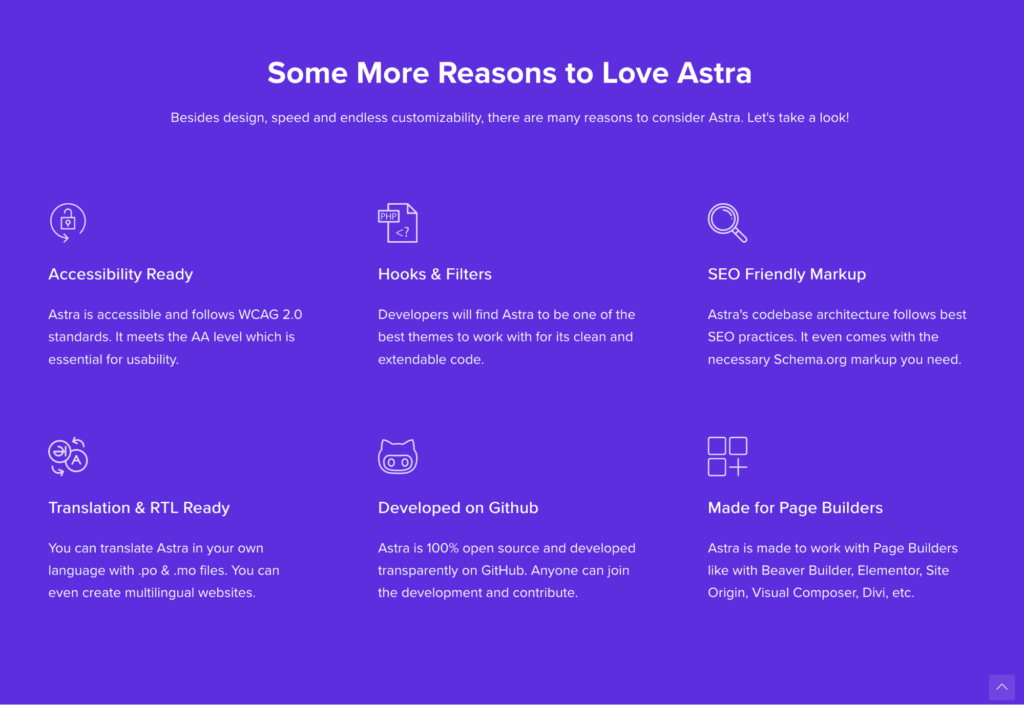
The advertised features of the Astra theme which includes web accessibility

So, my recommendation is to start by researching and looking at long-standing, reputable theme providers like Astra, which in my experience, is pretty accessible out of the box, the WCAG Theme, which has positive feedback, or Avada, which has a commitment to WCAG 2.1 AA compliance

With any theme, whether free or premium, I highly recommend you do your own testing and not just take the theme provider’s word for it. Recommendations on testing methods are provided later in this article.

“It’s More than Just an ‘Install and Go'”

It’s important to note that you can make an accessible theme inaccessible, either through installing inaccessible plugins or making poor design decisions. The most notable concerns are adequate contrast and using more than just color to convey information. For example, if your links are only identifiable because they’re a different color than normal text, you have an accessibility issue. They need to at least be in a different size, bolded, or ideally, underlined. 

In terms of contrast, WCAG 2.0 AA requires a minimum of a 4.5:1 ratio for normal text, 3:1 for larger text (bold 18px or standard 24px and larger), and 3:1 for user-interface components, such as input borders, focus states, and links.

Building an Accessible Theme

If you’re creating a custom WordPress theme, there is a host of considerations you’ll need to consider. Your first step will be to identify what guidelines you need to comply with and to what extent. You can read more about the different guidelines to identify which fits your situation here.

“I’d recommend doing custom development from a starting point like the Underscores starter theme—while it doesn’t offer much in the way of design, it does provide a great basis for the underlying HTML, which is an enormous part of what makes a site accessible.”

While specific requirements will differ, here are some common areas you should address:

Adequate Color Contrast

Ensuring adequate color contrast is a key aspect of web accessibility and usability. A large portion of the world’s population has vision issues and has trouble distinguishing text and interface elements that have poor color contrast.

WCAG 2.0 AA requires a minimum of a 4.5:1 ratio for normal text and 3:1 for larger text (bold 18px or standard 24px and larger). For more on testing contrast combinations, see the testing section.

Perceivable Differences

On a related note, ensure that you use more than color to differentiate. If the only difference between normal text and a text’s link is color, you have an accessibility issue. At the minimum, the text should also be in bold, or better yet, underlined. 

This applies to active states, focus states, non-text links, etc.

Keyboard Navigation

Make sure users can navigate your website with a keyboard. Can they tab through all the menus and links on the site? Are focus states on links clear, and do they have enough contrast? 

Screen-Reader Navigation

Ensure your theme is built to support screen-reader navigation. This includes creating skip links at the top of the page, using proper ARIA roles and/or HTML5 landmarks for easy section jumping, and ensuring that your links are not ambiguous.

To elaborate more on links, screen readers allow users to navigate a page by jumping from one link to the next. If the link’s text is only “Read More,” it will be unclear what the link pertains to or where it will take the user when it is clicked. Instead, build more descriptive links (e.g. “Read more about our services”), use screen-reader-only text, or use ARIA-label attributes to give screen readers a more detailed description to read from.

Semantic Markup and Markup Quality

As Dolson described earlier, proper HTML markup is a significant factor for web accessibility. Semantic markup means that the HTML code properly describes the content contained within it. That means not using <table> tags for layout, using <ul> and <ol> tags for lists rather than ASCII bullets or typing out numbers, and not using <ul> and <ol> tags for elements that aren’t actually lists. 

Heading levels should progress linearly without gaps, meaning before you use an H3 tag, for example, you need to have H1 and H2 tags. 

Finally, be careful not to repeat IDs on the page.

While there’s more that goes into creating accessible HTML code, the concepts discussed above are some great high-level concepts to keep in mind as you build your pages.

Text Alternatives for Non-Textual Content

The web has evolved into a media-rich landscape. While engaging, content that’s in anything other than a text-based format can be inaccessible to those using assistive technologies. A screen reader doesn’t know what’s depicted in an image, and therefore can’t describe it without your manual assistance. A podcast can’t be consumed by someone who’s deaf unless you have a transcription.

Make it a practice to provide alternate text, or “alt text,” for any content added as an image/icon, video file, or audio file. This is not necessary if an element is purely decorative.

Resizable Fonts

Ensure your layouts and text support font-resizing. Many users will increase the size of text in their browser for improved legibility. Your theme needs to support that.

This is done by ensuring elements containing text can expand vertically and that font sizes are defined in ems and rems, rather than px. 

This is easy to test, as every web browser has the option to enlarge and shrink text. Try enlarging your text three times to see if the font size increases and if the layout breaks.

Allow Users to Stop or Control Motion

If you have any automatic motion or animation, make sure you provide the option for users to control and stop it.

Reference the WordPress Accessible-Theme Coding Standards

The above list is far from exhaustive; there are lots of factors, large and small, that contribute to your custom theme’s accessibility. When it comes time to build your theme, I recommend you reference the WordPress accessible-theme coding standards for more specifics.

Now that we’ve discussed themes, let’s talk about how plugins impact your websites accessibility.

WordPress Accessibility and Plugins

Plugins are one of the most compelling reasons to use WordPress. At the time of writing, there are over 55,000 free plugins in the WordPress repository and thousands of paid plugins as well. Each plugin gives WordPress functionality it didn’t previously have.

With a few quick clicks, you can add new features to your website, such as contact forms, e-commerce functionality, project portfolios, photo galleries, and social networks.

While powerful, plugins are a common cause of accessibility issues. Plugins are only as good or as accessible as they’re created, and since they add or manipulate the code of your website, they can easily introduce accessibility issues.

Simply put, if the plugin wasn’t built with accessibility in mind, it might have accessibility issues. Let’s talk about the common types of plugins where I’ve seen problems.

“It’s hard to make reasonable recommendations for plug-ins however—I have yet to find a way to keep on top of whether or not any given plug-in is accessible or staying that way.”

— Joe Dolson

Interactive Plugins

Any plugin that creates “interactive” elements such as carousels, sliders, dropdowns, menus, pop-ups, accordions, and tabs are ripe for accessibility issues. These types of interactive elements require special care, attention, and testing to ensure accessibility, and it’s rare to find a plugin of this type that has done so. This is regardless of whether the functionality is deployed via shortcode, Gutenberg block, widget, etc.

That’s not to say your website can’t have these features or use these types of plugins and still be accessible; rather, you’ll need to be extra careful in your selection, and I highly recommend testing any plugin before committing to it.

Form Plugins

Like interactive features, forms require special care and attention to ensure assistive technology can properly describe, navigate, and interact with forms and form fields. Labels, error messages, and focus states all need to be treated in the correct way. Otherwise, users with disabilities will have difficulty using these forms. In my experience, most form plugins have accessibility issues. We typically create custom-coded forms as a result.

Page Builders

Page-builder plugins have become extremely popular over the past few years. Simply put, page builders give you a more “drag and drop” experience to building pages on WordPress sites. In many ways, page builders are similar to Gutenberg, only they tend to be more robust and sophisticated. 

Page builders can also introduce accessibility issues, and quickly. In my experience, most page builders are accessible when it comes to presenting static content. However, they often include a range of interactive capabilities like sliders, animations, and pop-ups that have accessibility issues. 

If you feel you need a page builder to build your site, keep it simple, and stay away from interactive modules unless you’ve tested and confirmed that they’re accessible.

Accessibility Plugins

Until now, we’ve only talked about plugins that could negatively impact your site’s accessibility. What about plugins that improve accessibility? There are nearly 100 plugins tagged under “accessibility” in the WordPress repository, and there are at least a dozen more premium accessibility plugins that I’m aware of. Each of these plugins promises to either improve the accessibility of WordPress itself, monitor accessibility, or remediate accessibility issues for popular plugins and themes, such as Gravity Forms, Divi, and Genesis.
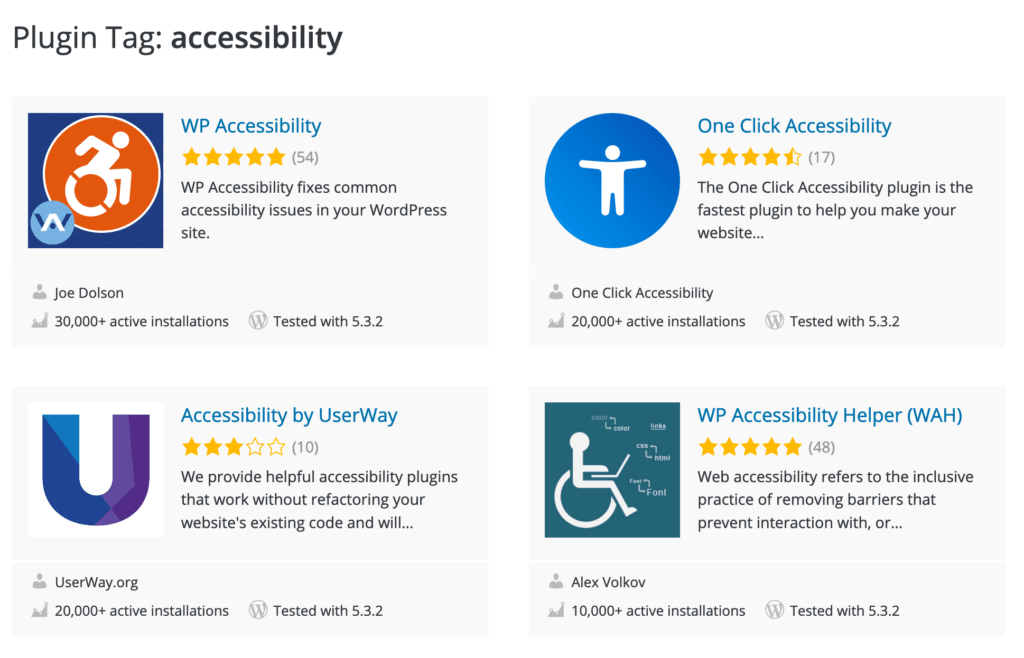
A listing of plugins on the WordPress.org repository that are tagged "accessibility"

While I’ve only personally used a handful of these plugins, such as themes that claim they’re accessible, I recommend you don’t take plugin promises as gospel. On more than one occasion, I’ve installed a plugin that claimed to correct accessibility issues of a popular plugin, only to find that the plugin still had a significant number of accessibility issues. 

“I will recommend staying away from any plug-in that claims or implies that it will fix your site to help you meet accessibility guidelines—no plug-in is going to be able to seriously achieve that goal.”

— Joe Dolson

Now that you know how to carefully select the right themes and plugins to ensure accessibility, it’s time to discuss creating accessible web content.

Creating Accessible Content

Having an accessible theme and accessible plugins doesn’t mean your website will be accessible. The content itself needs to be accessible as well. For the most part, this comes down to understanding how to use the native accessibility tools within WordPress and making smart design decisions.

I recommend providing text alternatives to non-textual content, ensuring adequate color contrast, and including descriptive links. 

Text Alternatives for Non-Textual Content

The web has evolved into a media-rich landscape. While engaging, content that’s in anything other than a text-based format can be inaccessible to those using assistive technologies. A screen reader doesn’t know what’s depicted in an image, and therefore can’t describe it without your manual assistance. A podcast can’t be consumed by someone who’s deaf unless you have a transcription.

Make it a practice to provide alternate text, or “alt text” for any images you insert into a page or post. Act as if you are describing the image to someone who cannot see it, and describe it well enough that they can still understand what the image is about. This can be done right in the WordPress editor. 
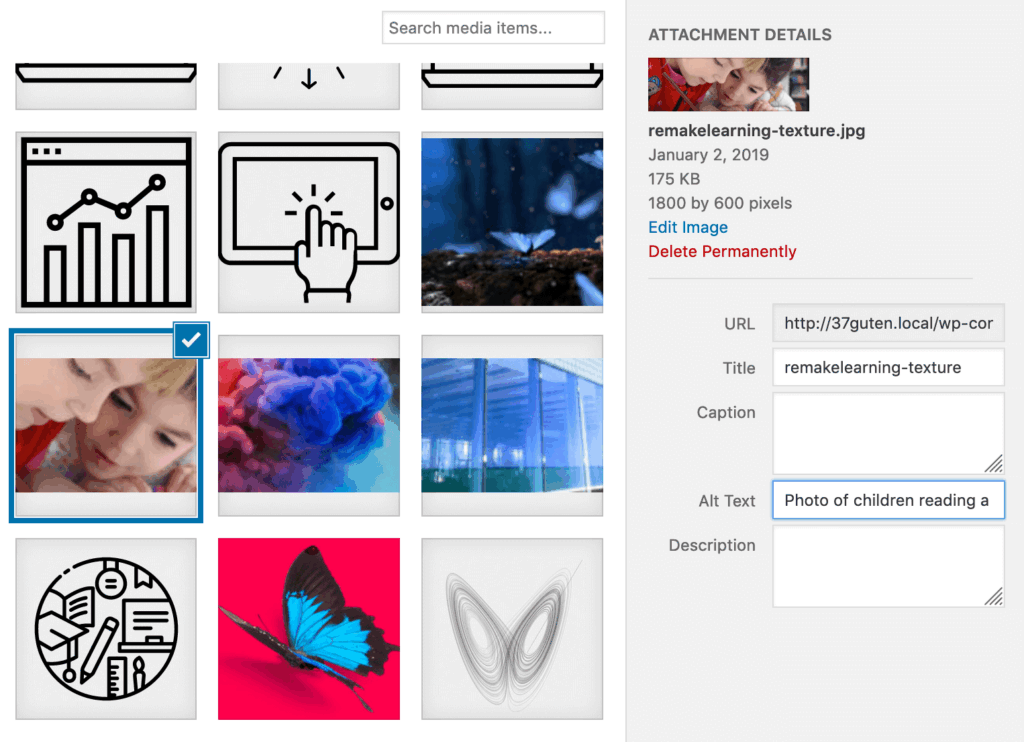
An example of supplying ALT text for an image through the WordPress media library

For video clips, audio files, or diagrams, provide transcripts or summaries either on the same page or in an easily accessible, linked location. 

In short, any time you’re adding content other than text, ensure there is an alternative format where someone who couldn’t see or hear can still consume it.

Ensure Adequate Color Contrast

While discussed in the theme selection, this bears repeating. The WordPress editor allows you to adjust foreground and background colors, which means you could make inaccessible color selections. 

Again, WCAG 2.0 AA requires a minimum of a 4.5:1 ratio for normal text and 3:1 for larger text (bold 18px or standard 24px and larger). For more on testing contrast combinations, see the testing section.

Descriptive Links

Most assistive technologies allow users to navigate through a page by jumping from one link to another. This can be an efficient way for users to quickly navigate to the next page in their journey. This feature is not effective, however, if the links added to a page are not self-evident. 

Basic Accessibility Testing

Testing is the only way to get a clear understanding of how accessible your website is. That is to say, if you’re just assuming your website is accessible, it probably isn’t. There is a whole range of accessibility testing tools, ranging from free and basic to expensive, enterprise solutions. I’m going to cover some of the more everyday testing solutions.

Tools like axe

Deque’s own axe is a great starting point for accessibility testing. You can start with the free version (which is still extremely full-featured) and sign-up for additional free beta features as you become more familiar with the tool. Axe is a browser extension that allows you to analyze the current state of a page to get a list of accessibility issues and suggestions for best practice. 

The added beta features have additional capabilities for more thorough testing, such as guided tests and a defined test scope.  

Using Keyboard Navigation

A simple accessibility-testing technique you can use is to navigate your own site using a keyboard. Start at the top of a page and use Tab and Shift + Tab to traverse up and down the page, paying attention to whether you can access all the links in your menus. Also make sure that it’s clear what element it is you’re focused on at each point. 

VoiceOver/iPhone (Mac)

If you’re using Apple products, you can use built-in accessibility applications like VoiceOver to test your site and pages for screen-reader accessibility. 

On a desktop, VoiceOver can be enabled with the following steps:

  1. Click on the Apple menu button at the top-left corner of your screen
  2. Navigate to “System Preferences”
  3. Click “Accessibility”
  4. Click “VoiceOver”
  5. Click the checkbox next to “Enable VoiceOver”

On an iPhone or iPad, it can be enabled with the following steps:

  1. Go to Settings/Accessibility/VoiceOver and enable VoiceOver
  2. Summon Siri and say “Turn on VoiceOver” or “Turn off VoiceOver”
  3. Triple-click the side button (on iPhone X or later)
  4. Triple-click the Home button (on other models)

VoiceOver, like any screen reader, has a learning curve. As it’s designed for non-sighted individuals, there are keys, shortcuts, and gestures you’ll need to use and understand to navigate your desktop and through web pages.

Apple has comprehensive references for desktop and mobile devices to get you started.

NVDA (PC)

If you’re testing on a PC, you’ll want to use NVDA by NV Access. This screen reader is free; continued support and updates come from donations and grants. NVDA has an extremely robust user guide, and NV Access offers a range of training resources, should you need additional assistance learning how to use the tools. 

I find that using a combination of testing methods and tools is important for maximizing accessibility and WCAG 2.0 AA compliance. Automated tools like axe are great for identifying issues in code, CSS, and content. There is no replacement, however, for actually experiencing the site using assistive technology like screen readers or navigating sites using a keyboard. Axe also has some features available in beta for manual guided tests, which can help you bridge that gap.

Conclusion

Web accessibility isn’t a simple topic, especially when it comes to WordPress. As you’ve learned, WordPress is well suited for creating an extremely accessible front-end experience. While the new Gutenberg editor and admin experience has room for improvement, overall, it’s a good foundation for an accessible website- and content-authoring tool.


Ross Johnson

Ross Johnson

Ross Johnson is a web designer for deque.com and strategist at 3.7 Designs, a teacher at Michigan State University, and a plugin author at SnapOrbital.

Based On Overwhelming Positive Market Feedback

HERNDON, VA – May 5, 2020  – Deque Systems, a leading software company specializing in digital accessibility, today announced the unification of its enterprise accessibility testing products under the axe brand.

Deque’s WorldSpace Suite of enterprise products, all built on the axe-core accessibility rules library, will now be repackaged using the “axe” name.

With 37 million downloads of its rules library, well over 100,000 weekly axe Chrome extension users and 8,000 axe beta users, axe has become a trusted industry standard for accessibility testing worldwide. Google, Microsoft, the U.S. Department of Justice and many others use axe-core as their accessibility standard.

“We’re grateful to everyone who reached out, completed our surveys and interacted with our tools. The feedback has been clear – driving us to rename our solutions under the well-known axe brand,” comments Dylan Barrell, Chief Technology Officer at Deque Systems. “This should bring clarity to those making the jump from our free axe browser extension to our paid enterprise tools.”

Intelligent Guided Testing: The first significant change in this transition is within axe DevTools, formerly WorldSpace Attest, with the inclusion of Intelligent Guided Testing, now out of beta.

“Intelligent Guided Testing enables developers of any experience level to easily identify accessibility issues not previously detectable by automated testing alone,” continues Barrell. “We’re thrilled to make this available to customers today. They are a huge driving force behind our repackaging efforts.”

Rebranded axe Enterprise Solutions:

  • WorldSpace Attest is now known as axe DevTools, which enables automated accessibility testing to be easily integrated into an organization’s development
  • WorldSpace Assure is now known as axe Auditor, which enables testers to perform comprehensive WCAG audits of all content and applications.
  • WorldSpace Comply is now axe Monitor, which dynamically monitors and reports on the accessibility status of entire websites.

The rebranding and repackaging is effective immediately. Explore the axe suite of products today at: https://www.deque.com/axe/.

About Deque Systems

Deque (pronounced dee-cue) is a web accessibility software and services company, and our mission is Digital Equality.  We believe everyone, regardless of their ability, should have equal access to the information, services, applications, and everything else on the web.

We work with enterprise-level businesses and organizations to ensure that their sites and mobile apps are accessible. Installed in over 250,000 browsers and with over 1,000 audit projects completed, Deque is the industry standard.

News Media Contacts

At Deque:
Ryan Bateman, 703-225-0380, marketing@deque.com

Deque Systems

Deque Systems

Deque is the global leader in digital accessibility, helping the world’s top enterprises build inclusive products, services, and experiences and achieve lasting compliance. Recognized by leading industry analysts for its AI-powered tools, comprehensive services, and developer-trusted solutions, Deque delivers the industry’s most complete accessibility offering. The Axe platform, anchored by Axe-core, has more than 3 billion downloads and 875,000 installed extensions, making it the global standard for accessibility testing. As a pioneer of people-first accessibility, Deque applies a human-in-the-loop approach that blends expert insight with AI innovation to advance its mission of digital equality for all.

Tags:  accessibility tools axe news

(Editors note: The axe-linter for GitHub is no longer available. You may find value in the axe-linter for VS Code.)

Axe Linter Requires Minimal Effort to Detect and Suggest Accessibility Fixes; New GitHub App is Free for Personal Repositories  

HERNDON, VA – May 5, 2020  – Deque Systems, a leading software company specializing in digital accessibility, today introduced axe Linter, an automated GitHub-based app which checks source code for common accessibility issues, automatically finding and suggesting fixes.

Developers can supplement existing accessibility testing efforts by using axe Linter to catch accessibility problems early in the development process, significantly reducing future testing and remediation efforts. Once axe Linter is enabled for a GitHub organization, it can be installed or enforced on every repository, running automatically on every change or pull request without further input or processes from the development team.

Axe Linter currently supports the React (JSX / TSX), Vue, HTML and Markdown formats.

“Axe Linter saves time and money by shifting inspection to the earliest phase of development, so accessibility problems can be identified and repaired before code even gets merged,” says Dylan Barrell, Chief Technology Officer at Deque Systems. “Once installed in your GitHub repository, it requires no further developer effort to get feedback on code changes. Axe Linter only analyzes new or changed code and makes suggestions on how to resolve accessibility issues. We expect it will become a must-have element of our axe DevTools solutions.”

Axe Linter is built upon a growing list of rules based on WCAG 2.1 as well as a number of best practices. The application has been refined to return zero false positives.

Axe Linter can have an immediate impact on the accessibility of development efforts, helping to make websites and applications more accessible for all, including people with disabilities.

“Axe Linter offers easier-than-push-button accessibility checking for source code, ensuring accessibility checks are in place for every change or pull request. When combined with the popular free axe Browser Extension for testing within the browser, or any of Deque’s Enterprise offerings, development teams have everything they need to make a huge impact on making their apps more accessible to people with disabilities,” says Preety Kumar, CEO, Deque Systems.

About Deque Systems

Deque (pronounced dee-cue) is a web accessibility software and services company, and our mission is Digital Equality.  We believe everyone, regardless of their ability, should have equal access to the information, services, applications, and everything else on the web.

We work with enterprise-level businesses and organizations to ensure that their sites and mobile apps are accessible. Installed in over 250,000 browsers and with over 1,000 audit projects completed, Deque is the industry standard.

News Media Contacts

At Deque:
Ryan Bateman, 703-225-0380, marketing@deque.com
Kristina LeBlanc, 508-930-5636, kristinawleblanc@gmail.com
Frank Cioffi, 415-893-1570, frankc@medialinkgroup.com

Deque Systems

Deque Systems

Deque is the global leader in digital accessibility, helping the world’s top enterprises build inclusive products, services, and experiences and achieve lasting compliance. Recognized by leading industry analysts for its AI-powered tools, comprehensive services, and developer-trusted solutions, Deque delivers the industry’s most complete accessibility offering. The Axe platform, anchored by Axe-core, has more than 3 billion downloads and 875,000 installed extensions, making it the global standard for accessibility testing. As a pioneer of people-first accessibility, Deque applies a human-in-the-loop approach that blends expert insight with AI innovation to advance its mission of digital equality for all.

Tags:  accessibility tools axe news

Introduction

In the accessibility industry, there are many different types of products and services that can help organizations achieve compliance. The right tool or service for your organization depends on your desired project timeline and overall accessibility maturity.

Most companies that are completely new to accessibility will start with an audit, which is a detailed report of accessibility issues of an organization’s website or application.

Audits are a great way to get a holistic view of your digital products’ accessibility, but they do require time and remediation effort from your organization’s developers, which can disrupt your team’s sprint cycles. The other solution for companies that are new to accessibility is accessibility overlays.

Pause: In the accessibility community, overlays can mean two very different things. In the post below, we’ll dive into why Tool-based overlays are problematic. It’s important to note that Deque’s Accessibility overlays are Custom JavaScript overlays. We’ll discuss the key differences in further detail below.

Custom Javascript accessibility overlays should only be used as a short-term solution for when:

  • Your company needs to urgently be accessible because of a legal complaint or lawsuit
  • You need to make a 3rd-party service on your website accessible and you don’t have access to the source code or cannot upgrade to a new version immediately
  • You need your product to immediately be accessible to sell it to another organization, such as the Federal Government.
  • Your development teams are working on integrating a long term fix but you need to resolve a critical accessibility defect immediately.

In this blog post, I’ll discuss what an accessibility overlay is, how not all overlays are created equal (Tool-based overlays vs. Custom JavaScript overlays), and how Deque’s Amaze service could help your company achieve accessibility right now.

What is an Accessibility Overlay?

An accessibility overlay is an additional piece of JavaScript that is added to a Web site that modifies the markup of the site when the user views it. These overlays can change what the site looks like to address visual accessibility issues, can add missing accessibility semantics or can add accessible text or text alternatives to the page.

There are two types of overlays: targeted “Custom JavaScript overlays” – customized to the specific page and website, these overlays can make comprehensive changes to any accessibility concern on a specific page, and “Tool-based overlays” often seen in the form of a toolbar, plugin or extension – these make limited, generic changes to the page, some of which can be controlled by the site visitor.

Not All Overlays are Created Equal: Avoid Tool-Based Overlays

When the accessibility community cringes in regards to the term overlays, they are thinking of the toolbar accessibility overlay services or even plugins, or widgets that require the user to install a separate tool in order to make the website accessible.

These overlays are a one-size-fits-all approach that simply does not work for people with disabilities. In fact, tool-based overlays are cheap assistive technologies that do little to improve the real accessibility of Web properties.

Here are the big issues with these tool-based overlay “solutions”:

They require people with disabilities to download and use a different tool they aren’t used to, instead of the assistive technology they are comfortable with.

This may not seem like a big deal for those who don’t regularly use assistive technologies, but it is akin to asking you to write a ten-page paper with your left hand if you’re right-handed, or vice versa. Assistive technologies have a lot of features and take a lot of time for users to become proficient, asking them to use some cheap alternative is no solution at all.

They require the user to know about and install a custom plugin that might introduce its own accessibility problems.

They don’t work for native mobile applications, so your website is still at risk for an accessibility-related complaint or lawsuit.

They only address a limited scope of accessibility issues:

  • They provide simple modifications to the page overall, they may change the color contrast, add a focus indicator or add a high contrast mode which addresses only a small number of the possible accessibility barriers
  • They cannot add missing complex keyboard or device interactions, they cannot fix specific site semantics and they cannot add meaning or text alternatives where these are missing

Deque’s Solution: Amaze – Custom JavaScript Overlay

At Deque, I am the product manager for Amaze. Amaze is an “overlay” solution that is completely different from what most people think of when they hear the term.

To start, Amaze is a patented custom service built by myself and the Developer Service Team. We use our patented technology to create custom JavaScript overlays to fix specific accessibility issues on your specific pages without having to touch the source code of your website or application.

How it works: Amaze is JavaScript that runs after a page load and before the end-user consumes the page, providing accessibility corrections and enhancements as a temporary means to improve accessibility.

Amaze can make the following changes to your web application without changing the underlying source code:

  • Add missing textual information (example: alternative text for an image)
  • Add other missing HTML attributes (such as roles of elements, states of elements), correcting invalid attributes, or to correct invalid elements entirely
  • Add event handlers to allow use by all sorts of input devices
  • Add structural information to the page (example: marking lists as lists, tables as tables, etc.)

This approach makes comprehensive accessibility fixes to your pages that work for all disabilities and for all assistive technologies.

Amaze overlays can solve the majority of accessibility issues. However, there are a couple of things Amaze cannot fix that companies will need to address. For example, Amaze cannot add captions to existing videos on the page or fix specific issues with images such as color contrast and text inside of images. Also, it’s important to reiterate Amaze is not a long-term solution: although Amaze goes into the DOM, it will need to be updated if targeted elements in the DOM change.

In Summary

As previously mentioned, Custom JavaScript accessibility overlays are a great short-term solution that helps to give your organization time before a sustainable accessibility program and shifting accessibility left in your software development lifecycle (SDLC).

If you’re looking for long-term, sustainable ways to implement accessibility, I recommend looking into the following tools or services:

  • Automated Accessibility tools such as axe or WorldSpace Attest, which developers can use while they code and catch up between 30-50% of accessibility issues.
  • Monitoring tools, such as WorldSpace Comply, are also a great way to ensure new code isn’t creating new accessibility issues on your website.
  • Training to avoid outsourcing manual remediation efforts, as not all accessibility issues can be caught through automation. Training also helps teams adopt the cultural change needed for accessibility to succeed. Deque offers virtual training, online, and in-person training to help your organization become self-sufficient.
Tony Kornmeier

Tony Kornmeier

Tony Kornmeier is the Developer Services Team Lead at Deque. Tony has been practicing accessibility for 5 years and has been working in development for 16 years. Tony cares deeply about accessibility and help companies achieve accessibility in their dev teams.

Open Source axe-core Now Exceeds 33 Million Downloads, Reflecting Increased Demand for Digital Accessibility for People with Disabilities

HERNDON, VA – March 26, 2020  – Deque Systems, a leading software company specializing in digital accessibility, announced today that axe-core, the most comprehensive and widely-deployed open-source library of accessibility rules, has exceeded 33 million downloads, lately averaging one million downloads every week.

More than 100 developers have contributed their best practices for accessibility to the axe-core open source program. Seventy-five percent of these contributors are not Deque employees.

“The number of external contributors is a sign of how active the axe-core community is, as well as the innovation happening in accessibility testing in general,” says Dylan Barrell, Chief Technology Officer at Deque Systems. “These contributions include nine language translations including French, German and Spanish; we would never have been able to offer these translations without the help of the community.”

Organizations reference the axe-core accessibility rules library as the de facto standard for accessibility testing. These rules help inform testers and web developers what is and isn’t accessible. Axe-core is fast, secure and lightweight. It was built to seamlessly integrate with any existing test environment and can automate testing alongside regular functional testing. Google, Microsoft and the U.S. Department of Justice use axe-core as their accessible standard.

Axe-core is the foundation of Deque’s accessibility testing tools including the axe browser extension and WorldSpace Attest toolkit. Developers may download axe-core at: https://github.com/dequelabs/axe-core.

“When we launched the axe-core rules library in 2015, it took three years to reach one million downloads,” says Preety Kumar, CEO, Deque Systems. “The momentum we’ve seen over the last year reflects the increased demand for building accessibility testing into the development process early, as a result of increased legal action, government mandates, and the desire of organizations to make their digital assets available to all people.”

The Axe Momentum Continues: Built on top of axe-core and currently in beta, the axe Pro browser extension enables developers of any skill level to run both automated and intelligent guided tests against their websites and applications. Deque recently announced that the axe Pro beta had surpassed 6,000 users, 1,000 of which have provided ideas and feedback for improvements such as new guided test functionality.

The axe Pro beta can be downloaded free at: deque.com/axe/devtools.

About Deque Systems

Deque (pronounced dee-cue) is a web accessibility software and services company, and our mission is Digital Equality.  We believe everyone, regardless of their ability, should have equal access to the information, services, applications, and everything else on the web.

We work with enterprise-level businesses and organizations to ensure that their sites and mobile apps are accessible. Installed in over 250,000 browsers and with over 1,000 audit projects completed, Deque is the industry standard.

News Media Contacts

At Deque:
Ryan Bateman, 703-225-0380, marketing@deque.com

Deque Systems

Deque Systems

Deque is the global leader in digital accessibility, helping the world’s top enterprises build inclusive products, services, and experiences and achieve lasting compliance. Recognized by leading industry analysts for its AI-powered tools, comprehensive services, and developer-trusted solutions, Deque delivers the industry’s most complete accessibility offering. The Axe platform, anchored by Axe-core, has more than 3 billion downloads and 875,000 installed extensions, making it the global standard for accessibility testing. As a pioneer of people-first accessibility, Deque applies a human-in-the-loop approach that blends expert insight with AI innovation to advance its mission of digital equality for all.

Tags:  axe axe-core news

Measurements. They’re the thing you dread at the end of your design process where you have to lean wayyyy back in your chair, pour yourself another cup of coffee, look at the ceiling and say “Ok, let’s get this over with.”

Now there are lots of tools, libraries, patterns, and software that can make this faster, but at the end of the day, a precision prototype’s job is to communicate how certain aspects of a design should be represented down to an element’s behavior, color, typeset, size and scale– and you gotta do it.

Now, when it comes to accessibility there are other implications of your design that you’re responsible for articulating to your development team. In this article, we’re going to go through five common accessibility annotations that you can start adding to your designs today.

To demonstrate how to use them, we’ve put together a little example application. All of the assets you see in the article will be available for free at the end of the article.

One thing to note before we get started: just like design measurements, accessibility annotations are best suited at the pattern level. Once you’ve made a pattern accessible, many aspects of it don’t have to be re-defined or re-articulated every single time you employ that pattern in your designs. However, for the purpose of this exercise we’re going to annotate as though nothing is a pattern, but, you know, don’t do that or you’ll go crazy.

Example Site for Annotations

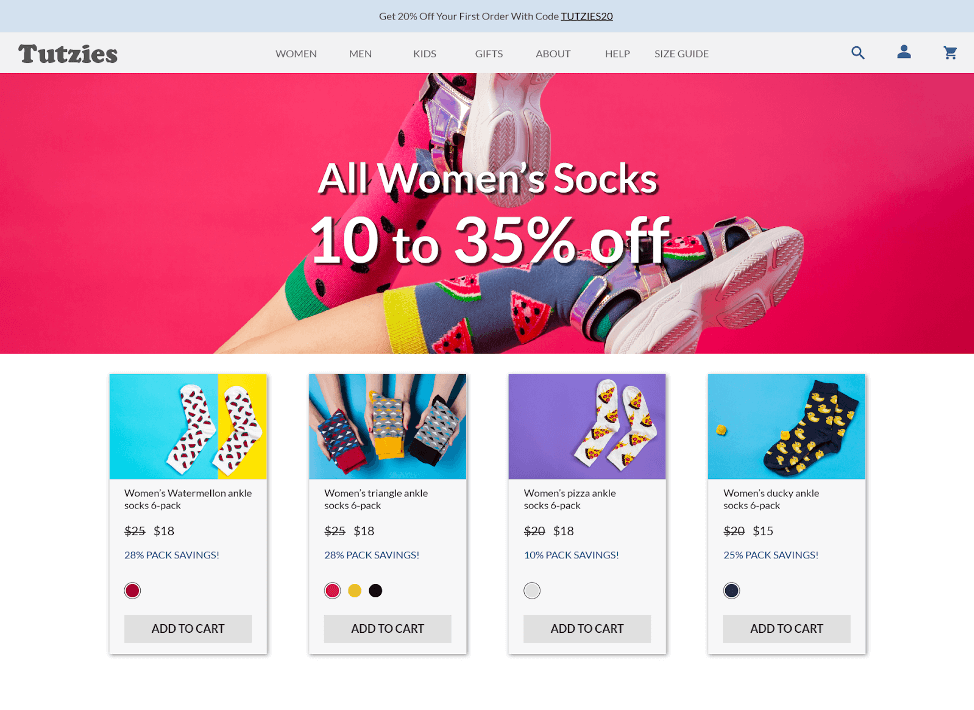
To better illustrate the five common annotations, I built a fake eCommerce sock site called Tutzies. Each annotation has a screenshot of the fake site illustrating how to use each annotation.

Screenshot of Tutxies homepage with featured image and sample product cards
[Tutzies homepage, no annotations]

Tabs

Let’s start with something I think most designers are familiar with: tab order. This is the order that elements are focused when you tab through the interactive elements on an application. This is important because this is how keyboard-only (KO) or Assistive Technology (AT) users move through and are presented with the information and functionality of your application. If you’re looking for a rule as to how to mark up tab order, typically it follows the top-down reading order of the page.

Let’s take a look at our example:

[Tutzies homepage, tab annotations]
[Tutzies homepage, tab annotations]
Couple things of note: #12 and #13 are important because I’m indicating that there are no other focusable elements between the end of the top bar and the first card. As for the cards, if I had already defined focus order within the cards at the pattern level you wouldn’t necessarily have to do it again here unless there was some deviation that needed to be noted.

For those with a keen eye, you’d notice that there isn’t a Skip Link in this example, which would typically be the first tab stop. You’re right, and in reality, for a site like this there should be one, but for simplicity, it was omitted.

Buttons and Links

Buttons and Links are a pretty easy set of annotations and most designers will be able to start using right out the gate. All you have to do is, well, indicate whether something is a button or is a link. How pedantic you need to be with this is up to you and your development team. I personally only use it when I need to define something that is non-obvious, such as something that is styled like a link but acts like a button such as something like + add another.

Let’s take a look at our example:

[Tutzies homepage, buttons and links annotations]
[Tutzies homepage, buttons, and links annotations]
If you’re wondering what constitutes a button vs. a link, we consider the difference like this: buttons are used for the evocation of functionality and actions such as opening a modal or saving progress; links are used for navigation. In the end, just make sure you are consistent. Oh! If you’re wondering why those color swatch swappers on the card pattern aren’t marked up as buttons, it’s because they aren’t…they’re actually styled radio controls.

Accessible Names

Accessible names (AccName) are information you provide to an element that allows it to communicate to an AT user what it is and, if needed, how it works. Common elements that need them are icons (that are not already labeled by text), non-decorative images, and non-standard controls (like the aforementioned radio control).

Let’s take a look at the example:

[Tutzies homepage, accName annotations]
[Tutzies homepage, accName annotations]
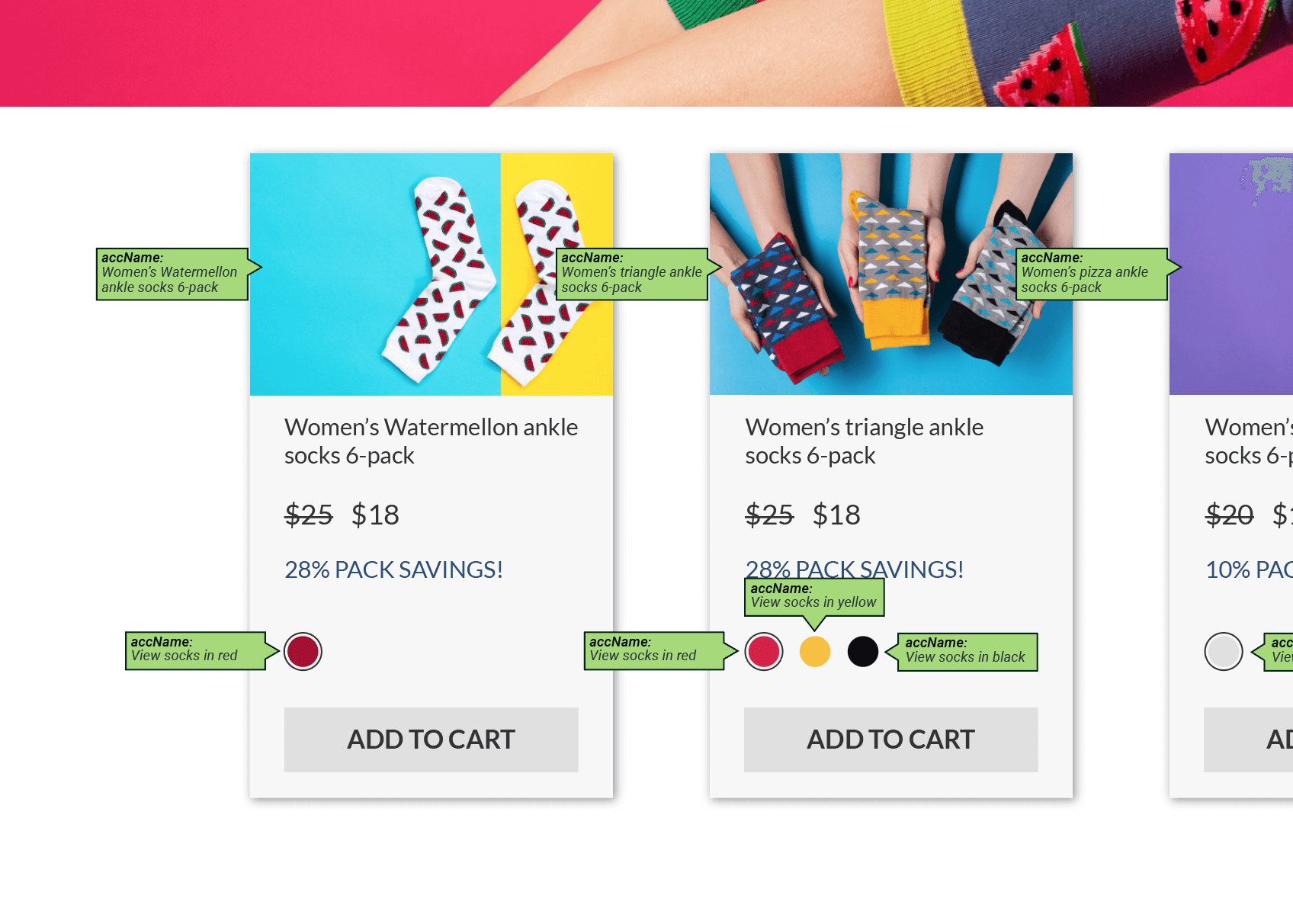
Here is a more detailed view of the Accessible Name Annotations:

Detailed View of AccName Annotations
[Tutzies homepage, accName annotations, zoomed-in screenshot]
So the logo gets one, the icons in the top bar get them…makes sense. The images in the cards get them as they are considered informative and the little radio color swap controls get them.

Wait, what about the giant banner image? It is considered a decorative image so it doesn’t need an AccName and the text on it is overlaid on the image so a screen reader will pick that up no problem. The ADD TO CART buttons do not need an AccName because the text on the buttons is sufficient.

If you’re struggling to decide if something needs an AccName or not, a good exercise to try is to imagine if you weren’t able to visually see an element. What information would a screen reader need to tell you in order for you to understand what it is and what to do with it? If that information isn’t present inherently on or around the element, it needs an AccName.

Headings

In this article I’m not going to go into a long diatribe about properly structuring content and reading order and how to do what, when, etc… Mostly because there is a lot of variances and, in reality, there are many correct answers depending on what you’re trying to emphasize and how.

Just know that many screen readers can skip from one <h> tag to another so it’s probably a good idea to make sure they share a cohesive narrative. What that narrative is is up to you. Here’s what you need to know: Make sure your <h> tags cascade and are nested properly <h1-n> and be consistent.

Let’s take a look at the example:

[Tutzies homepage, Headings annotations]
[Tutzies homepage, Headings annotations]
We only have 2 headings tags in this example: <h1> is in the banner and the <h2> is each of the titles in the cards. They tell a compelling narrative with the <h1> introducing the sale and each <h2> getting into specific items that are on sale.

Roles

Ok, I’m going to level with you. The definition of role may not be up to the UX designer…even Deque’s UX designers do not annotate roles in their designs. The reason why is because ARIA definitions are left up to our development team because that’s just the way it works for us.

However, we’ve included 3 common role definitions in this example in case it’s something that you’d like to start annotating in your designs and, in all honesty, they are fairly easy to identify.

Let’s take a look at the example:

[Tutzies homepage, Roles annotations]
[Tutzies homepage, Roles annotations]
Here is a more detailed view of the role annotations:

Enhanced view of role accessibility annotation
[Tutzies homepage, Roles annotations, zoomed-in screenshot]
Role =  navigation is your navigation structure. Notice, however, I don’t include the search, user and cart icons as they are not part of the nav structure for this application. Role = banner is used for banner-like information. You’ll commonly see this on a website for featured information at the top of the page. Role = Main is the main content of the application. There are more roles you can look into, of course, you should refer to the ARIA spec if you’re interested in learning more check out our Deque University course on ARIA.

Wrap-Up

A few important takeaways when starting to annotate your designs for accessibility:

  1. Talk with your development team. Find out what kinds of information they would like to have come from you and in what form. At the end of the day, the goal of these annotations is to build accessible applications.
  2. Don’t feel obligated to get all of these concepts at once. If this stuff feels daunting, don’t worry! Just try and incorporate one or two things at first. Maybe start with a design you’ve already built and retroactively annotate it as practice.
  3. Use whatever method works for you. Honestly, some of these might be overkill for every prototype you create. Maybe you just want to add some notes to the prototype? Maybe some of the annotations you handle in your feature tickets? Do what works best for you.
  4. These aren’t the only accessibility annotations that exist. There are lots more that you could add to the kit like aria-live region support, subtitles, etc…

Here is a link to download the kit and examples we featured in this article. You can download the kit as Adobe Illustrator (AI) files, Sketch files, or SVGs.

Download the Accessibility Annotations Tool Kit

P.S. Below are a few other free and useful accessibility tools you can start using today:

  1. Cauldron: Deque’s Open Source Pattern Library
  2. Deque’s color contrast tool
  3. Axe: Deque’s open-source automated accessibility tool
Aaron Pearlman

Aaron Pearlman

Aaron is Deque's Principal UX Designer. In addition to leading both strategic and tactical UX efforts, Aaron works on creating accessibility centric standards around user research, ideation, sketching, wireframing, prototyping, and usability testing.

We are very excited to announce the immediate availability of the 4.4 release of the axe Chrome Extension! A new Intelligent Guided Test for modal dialogs, Machine Learning enhancements to the Forms tool, improvements to the Keyboard Guided Test and an upgrade to axe-core 3.5.1 are the main highlights of the release.

Introducing the ARIA Modal Guided Test

The ARIA Modal Intelligent Guided Test is the latest test to be added to the axe Pro beta. This test is designed to help ensure an ARIA conforming implementation of your modal and alert dialogs – including focus management, correct use of ARIA properties and keyboard interaction. These can be difficult to test across all Assistive Technology (AT) and browser combinations, now axe does this for you.

In addition to evaluating the appropriate use of ARIA properties for screen readers and other AT, the ARIA Modal Guided Test goes beyond executing more complicated actions such as opening and closing dialogs to evaluate various states of dialogs and how they operate.

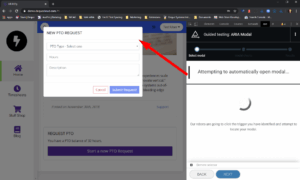
Screenshot of axe attempting to automatically open the modal based on inputs provided via the modal tool

Figure: Notice the axe extension is attempting to automatically open the modal based on inputs provided in a sample demo app.

Machine Learning Enhancements

Yesterday, Deque announced it was bringing Machine Learning to Accessibility Testing. Today, the Forms Intelligent Guided Test just became more intelligent and now leverages computer vision capabilities to help reduce the number of questions a user must answer manually, saving time and effort in the process.

This is just the beginning of our foray into leveraging Machine Learning to enhance accessibility testing and we look forward to expanding our use of it in the near future.

Improvements to the Keyboard Guided Test

We received quite a bit of feedback on the Keyboard Intelligent Guided Test and we have made quite a few adjustments as a result. Namely, it no longer raises issues when the focus indication is deemed insufficient. This check was based on a draft version of WCAG 2.2 and has been rolled back (we got a little ahead of ourselves).

Upgrade to axe-core v3.5.1

This upgrade is a significant improvement as the algorithms responsible for evaluating color contrast have been completely reworked, resulting in significantly enhanced performance. Users will notice scans complete more quickly and pages that would fail to scan entirely now return full results.

Upcoming Releases

The team behind the axe extension is hard at work on a number of improvements and can’t wait to share the fruits of their labor. Stay tuned to this blog and our Twitter feed in the coming months for a number of enhancements and improvements coming to your favorite accessibility extension as well as information about general availability.

Upgrade to the axe Pro beta for free and try our 8 guided tests, manage multiple tests, export results, and more…

Deque Systems

Deque Systems

Deque is the global leader in digital accessibility, helping the world’s top enterprises build inclusive products, services, and experiences and achieve lasting compliance. Recognized by leading industry analysts for its AI-powered tools, comprehensive services, and developer-trusted solutions, Deque delivers the industry’s most complete accessibility offering. The Axe platform, anchored by Axe-core, has more than 3 billion downloads and 875,000 installed extensions, making it the global standard for accessibility testing. As a pioneer of people-first accessibility, Deque applies a human-in-the-loop approach that blends expert insight with AI innovation to advance its mission of digital equality for all.

Axe™ Pro Beta continues to break down testing barriers, making automated accessibility testing easier than ever, while reducing manual testing

HERNDON, VA – March 9, 2020 – Deque Systems, a leading software company specializing in digital accessibility, continues to redefine automated accessibility testing by leveraging Machine Learning technology in its axe Pro beta.

In an industry first, Deque has successfully integrated Machine Learning technology to perform powerful visual analyses within axe Pro’s automated and intelligent guided testing, which significantly reduces the amount of manual work required to identify and fix accessibility issues. Catching these issues quickly and easily is a crucial step to ensure that websites and apps are accessible to all people, including those with disabilities.

“Much of accessibility testing involves determining whether digital content is accurately conveyed to assistive technologies and the users who rely on them to access that content,” comments Preety Kumar, CEO, Deque Systems. “By leveraging Machine Learning technology, we’ve continued to automate many legacy manual testing efforts, drastically reducing testing costs and making better use of a developer’s time.”

Machine Learning – How It Works: axe Pro’s guided testing tool leverages Computer Vision, which pulls semantic data from digital images, to analyze the visual content of an HTML page’s interface elements and their relationships to one another. The visual text is then extracted from the page and fed into axe Pro’s guided testing tools, which then performs an accessibility analysis in a fully automated fashion. This greatly reduces the manual work typically required of such an analysis

“Amazon, Google, Facebook and others have made huge advances in Machine Learning and Computer Vision technologies, which we are leveraging to apply to accessibility testing,” says Dylan Barrell, CTO, Deque Systems. “When added to our proven technology, and our domain-specific data, we believe this first step constitutes a breakthrough that significantly reduces the amount of manual testing. We will continue to use these techniques to increasingly and steadily offer more automation and time savings far into the future.”

Deque continues to work on improvements and additions to the axe Pro beta. More exciting guided tests, new features and new Machine Learning-powered tools will be added in the coming weeks.

The axe Pro beta is free. Anyone wishing to sign up can visit this web page: https://www.deque.com/axe-pro-sign-up/ .

About Deque Systems

Deque (pronounced dee-cue) is a web accessibility software and services company, and our mission is Digital Equality.  We believe everyone, regardless of their ability, should have equal access to the information, services, applications, and everything else on the web.

We work with enterprise-level businesses and organizations to ensure that their sites and mobile apps are accessible. Installed in over 250,000 browsers and with over 1,000 audit projects completed, Deque is the industry standard.

News Media Contacts

At Deque:
Ryan Bateman, 703-225-0380, marketing@deque.com

Deque Systems

Deque Systems

Deque is the global leader in digital accessibility, helping the world’s top enterprises build inclusive products, services, and experiences and achieve lasting compliance. Recognized by leading industry analysts for its AI-powered tools, comprehensive services, and developer-trusted solutions, Deque delivers the industry’s most complete accessibility offering. The Axe platform, anchored by Axe-core, has more than 3 billion downloads and 875,000 installed extensions, making it the global standard for accessibility testing. As a pioneer of people-first accessibility, Deque applies a human-in-the-loop approach that blends expert insight with AI innovation to advance its mission of digital equality for all.

Tags:  accessibility testing axe news

We’ve been debating internally for a few weeks now as myself and the collective Deque employee base has been closely monitoring COVID-19, but have decided it’s in the best interest of our employees’ collective health and safety to back-out of our CSUN Assistive Technology Conference sponsorship and attendance.

This means that Deque will not have a booth presence, will no longer be hosting our awareness (empathy) lab and hospitality event and most notably, have shifted our entire presentation lineup to a virtual lineup.

We’re still working on a solution to make our presentation materials available to those who have decided to physically attend the conference. The link referenced above will continue to be updated as details become available.

For those of you who were planning on networking or scheduling one-on-one demos, we’re making arrangements to facilitate those virtually, wherever possible.

Follow all of our #CSUNATC20 updates here.

Preety Kumar

Preety Kumar

Preety is the CEO of Deque Systems and co-founded Deque in 1999 with the vision of unifying Web access, both from the user and the technology perspective. Under Preety's leadership, Deque has grown to be a market leader in the field of information accessibility, serving corporate and government clients with the highest standards in information technology such as Veteran Affairs, Department of Education, Humana, Intuit, HSBC, Target, and others. She collaborated with the W3C Web Accessibility Initiative and is a nominated member of the Accessibility Forum's Strategic Management Council: a GSA sponsored group with representatives from the IT industry, academia, Government Agencies, and disabled user groups that fosters information accessibility through mutual cooperation.

Tags:  Accessibility news

Surpassing 6,000 beta users, Intelligent Guided Tests Fundamentally Changing How to Do Accessibility Testing

HERNDON, VA – February 27, 2020 – Deque Systems, a leading software company specializing in digital accessibility, today announced that its axe Pro beta, with its breakthrough automated and guided accessibility testing features, is generating significant developer traction with over 6,000 beta users currently on board.

Using axe Pro, users have identified more than 600,000 accessibility issues to date, 82,000 of which previously would only have been discovered manually. Typically requiring outsourced expertise, manual testing can be a very labor-intensive practice. Flagging these issues in development is a crucial step to ensure that websites and apps are accessible to all people, including those with disabilities.

Deque’s intelligent guided testing is fundamentally changing how organizations allocate testing resources, enabling developers to extend their test coverage and identify issues that may otherwise take days or weeks to discover. Users can save results, export them, test specific components on a page, and run multiple tests. There is no other solution with this combination of intelligent guided testing and automated accessibility testing in one.

“Guided Question-Answer Accessibility Walkthroughs: probably the best new feature of axe Pro. The tool is so friendly, it gives accessibility testing powers to just about anybody.” says Chris Coyier, Developer and Designer, CSS-Tricks and CodePen.

Building Momentum for Accessibility in the Developer Community: With over 70 percent of the axe Pro user holding roles in development, the community has already begun to shape the future of the product. As a free beta, it has received a high level of feedback and ideas for improvement from more than 1,000 users.

The recently launched keyboard testing tool is a direct result of this community feedback. Keyboard testing is one of the more time-consuming manual testing tasks. Axe Pro’s newly added keyboard testing tool automates most of this work.  Developers can easily and automatically identify missing focus indicators, missing ARIA roles and other keyboard accessibility problems.

“The new Keyboard Guided Test feature automates testing I have been doing manually for years (and saves me time). Thank you,” says John Otley, Systems Analyst & axe Pro beta user.

“Getting developers to dedicate time to accessibility testing beyond simple push-button solutions has been a challenge historically. Ninety-two percent of users reported ‘positive’ feedback with more than half of those specifying their reaction to axe Pro beta was ‘very positive,’” comments Dylan Barrell, CTO, Deque Systems. “Combined with a testing session length increase of 60 percent, these statistics show that developers are finding a lot of value in the new functionality and are accomplishing more while they’re at it.”

Deque continues to work on improvements and additions to the axe Pro beta and more guided tests and features will be added to the beta in coming weeks.

Anyone wishing to sign up for the axe Pro beta can visit this web page: deque.com/axe/devtools .

ABOUT DEQUE:

Deque (pronounced dee-cue) is a web accessibility software and services company, and our mission is Digital Equality.  We believe everyone, regardless of their ability, should have equal access to the information, services, applications, and everything else on the web.

We work with enterprise-level businesses and organizations to ensure that their sites and mobile apps are accessible. Installed in over 250,000 browsers and with over 1,000 audit projects completed, Deque is the industry standard.

News Media Contacts

At Deque:
Ryan Bateman, 703-225-0380, marketing@deque.com

Deque Systems

Deque Systems

Deque is the global leader in digital accessibility, helping the world’s top enterprises build inclusive products, services, and experiences and achieve lasting compliance. Recognized by leading industry analysts for its AI-powered tools, comprehensive services, and developer-trusted solutions, Deque delivers the industry’s most complete accessibility offering. The Axe platform, anchored by Axe-core, has more than 3 billion downloads and 875,000 installed extensions, making it the global standard for accessibility testing. As a pioneer of people-first accessibility, Deque applies a human-in-the-loop approach that blends expert insight with AI innovation to advance its mission of digital equality for all.

Tags:  axe manual testing news